You click your own website and wait. And wait. The little spinner in the browser tab keeps turning, and somewhere in the back of your mind a voice says: "It's the hosting, isn't it?"
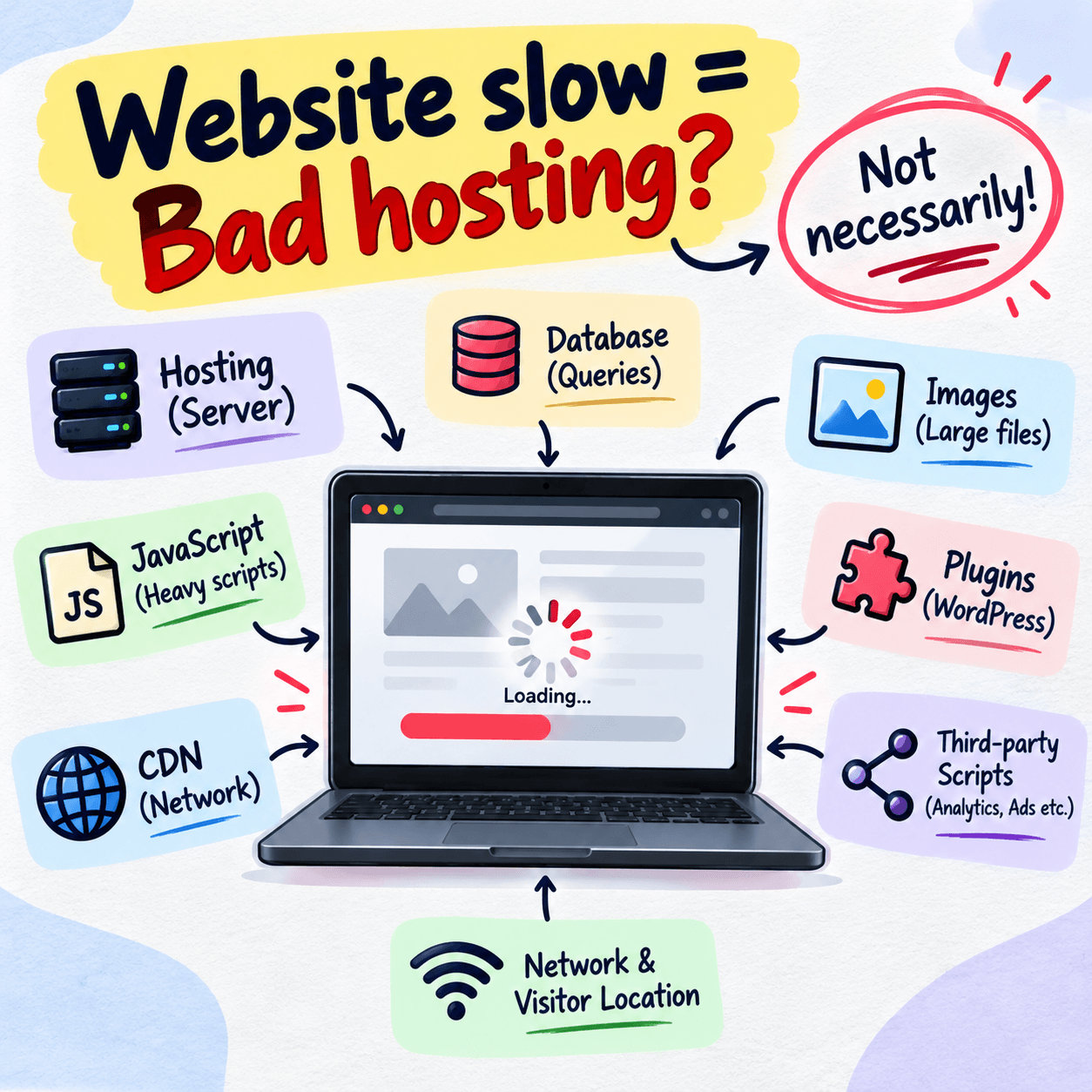
Maybe it is. But here's the thing most hosting companies won't tell you: a slow website is blamed on the host far more often than it deserves. I've seen people switch hosts three times in a year, paying more each time, only to discover their real problem was a 6 MB homepage image and a pile of plugins they forgot they installed.
So before you spend money or go through the headache of a migration, let's figure out what's actually going on. This guide walks you through how to diagnose a slow website, how to tell hosting problems from everything else, and what to do about each one.
Why website speed matters more than you think
Speed isn't just about patience. It touches almost everything you care about:
Search rankings: Google uses page experience signals, including Core Web Vitals, as part of how it ranks pages. A slow site won't be rescued by great content alone.
Conversions: People abandon slow pages. Even a one-second delay can noticeably cut sign-ups, sales, or enquiries.
Trust: A sluggish site feels unprofessional, even if your business is excellent.
Mobile visitors: Many of your visitors are on mid-range phones and patchy connections, where every extra kilobyte hurts.
If your site is slow, it's worth fixing properly. The key word is properly, which starts with finding the real cause.
First, understand what "slow" actually means
When someone says "my site is slow," they could mean several different things, and each points to a different culprit.
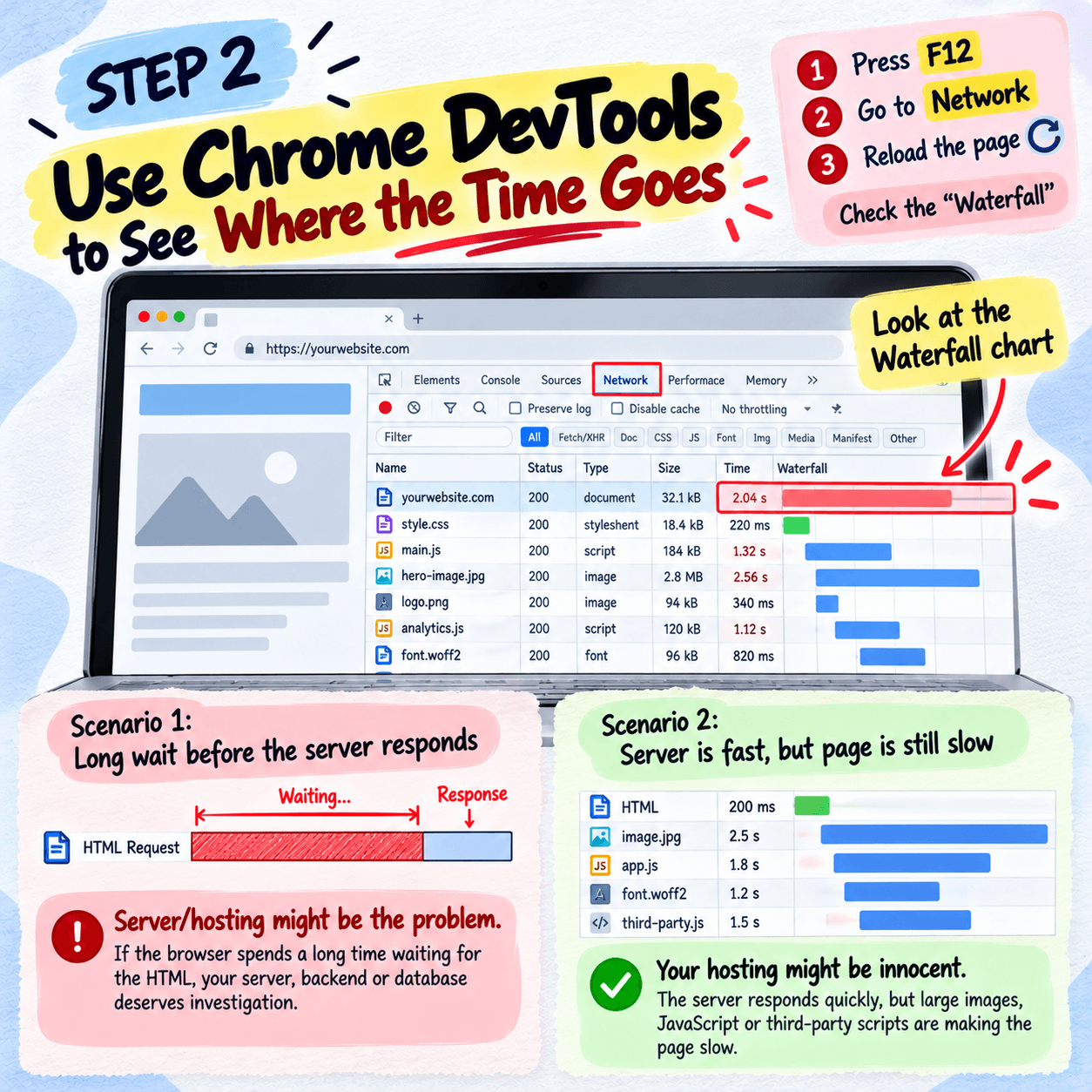
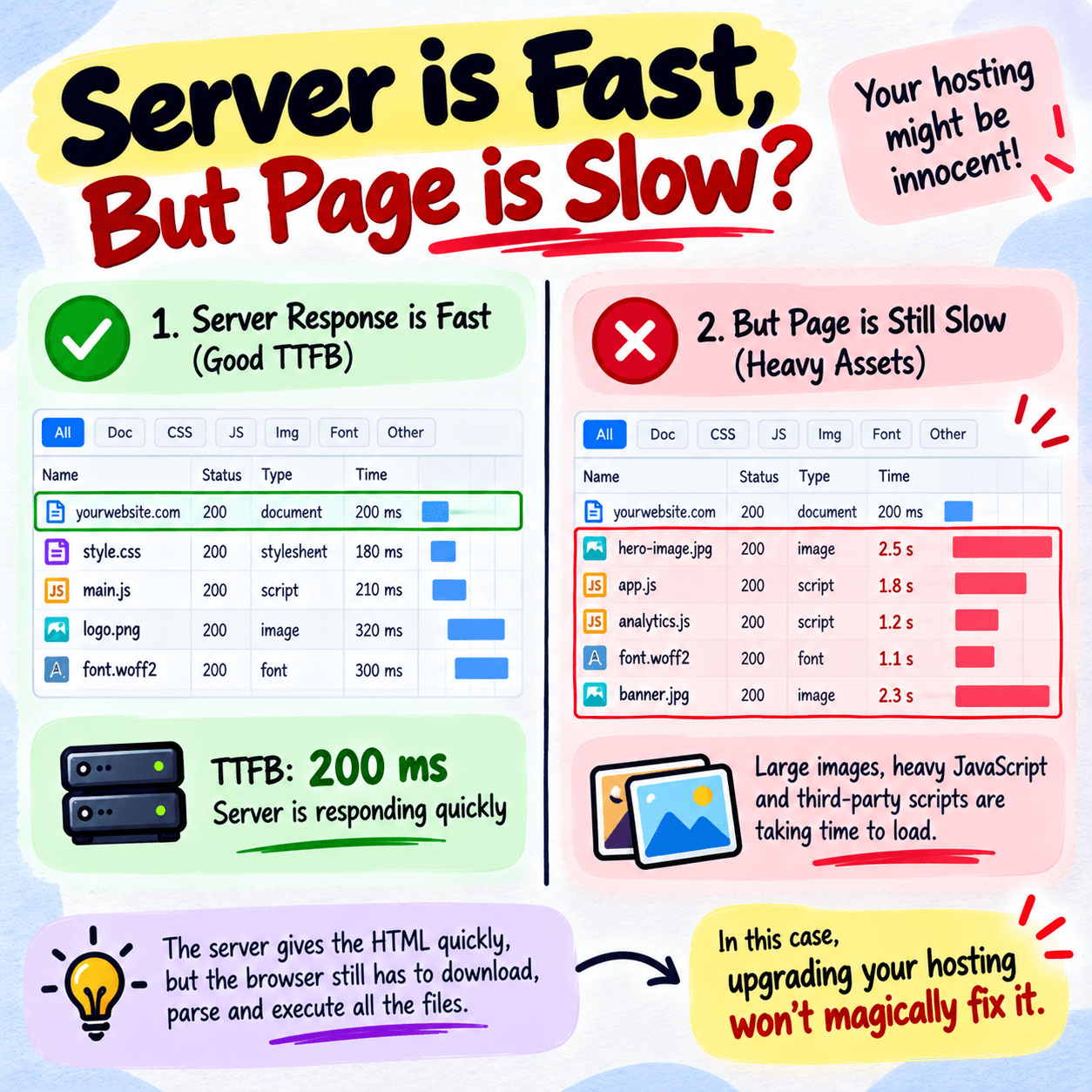
The server takes forever to respond: You click, and nothing happens for a second or two, then the page suddenly starts loading. This usually points to hosting or server-side issues.
The page starts loading quickly but takes ages to finish: Images, scripts, and fonts are probably too heavy. This is usually a front-end issue, not hosting.
The site is fast sometimes and painfully slow at other times: Think traffic spikes, shared server neighbors, or a cron job eating resources. This can be hosting, but not always.
Only the admin dashboard is slow: Often a plugin, theme, or database problem.
Keep these four patterns in mind. They'll help you read your test results in a minute.
The metric that exposes bad hosting: TTFB
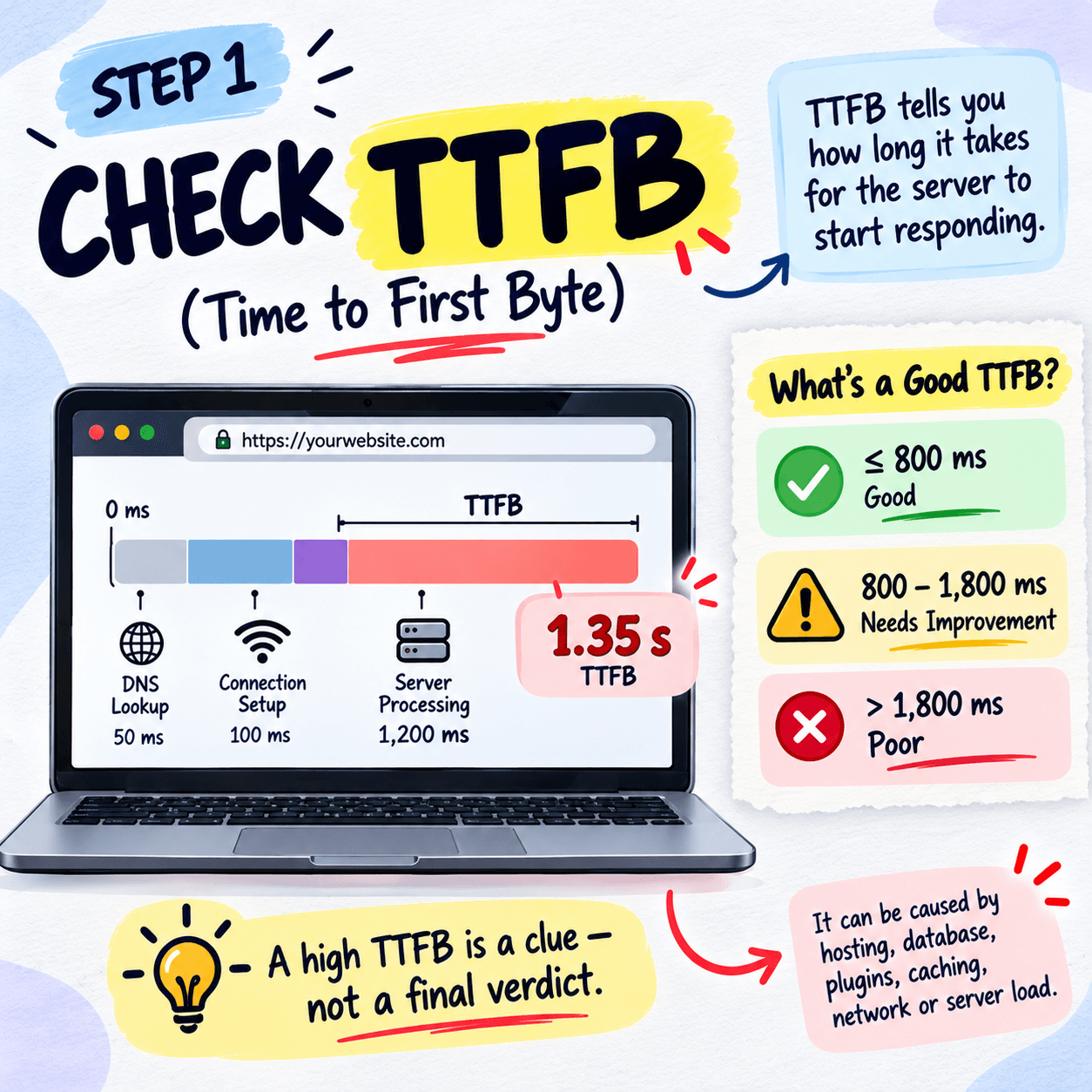
If there's one number to learn, it's Time to First Byte (TTFB). It measures how long your browser waits after requesting your page before it receives the very first piece of data back.
Why does that matter for hosting? Because before anything else can happen, your server has to receive the request, run your code, query the database, and start sending a response. A weak or overcrowded server stalls right here.
Rough guidelines most performance folks work with:
Under 200 ms: excellent
200 to 600 ms: acceptable for most sites
600 to 800 ms: worth investigating
Over 800 ms to 1 second: something's wrong, and hosting is a prime suspect
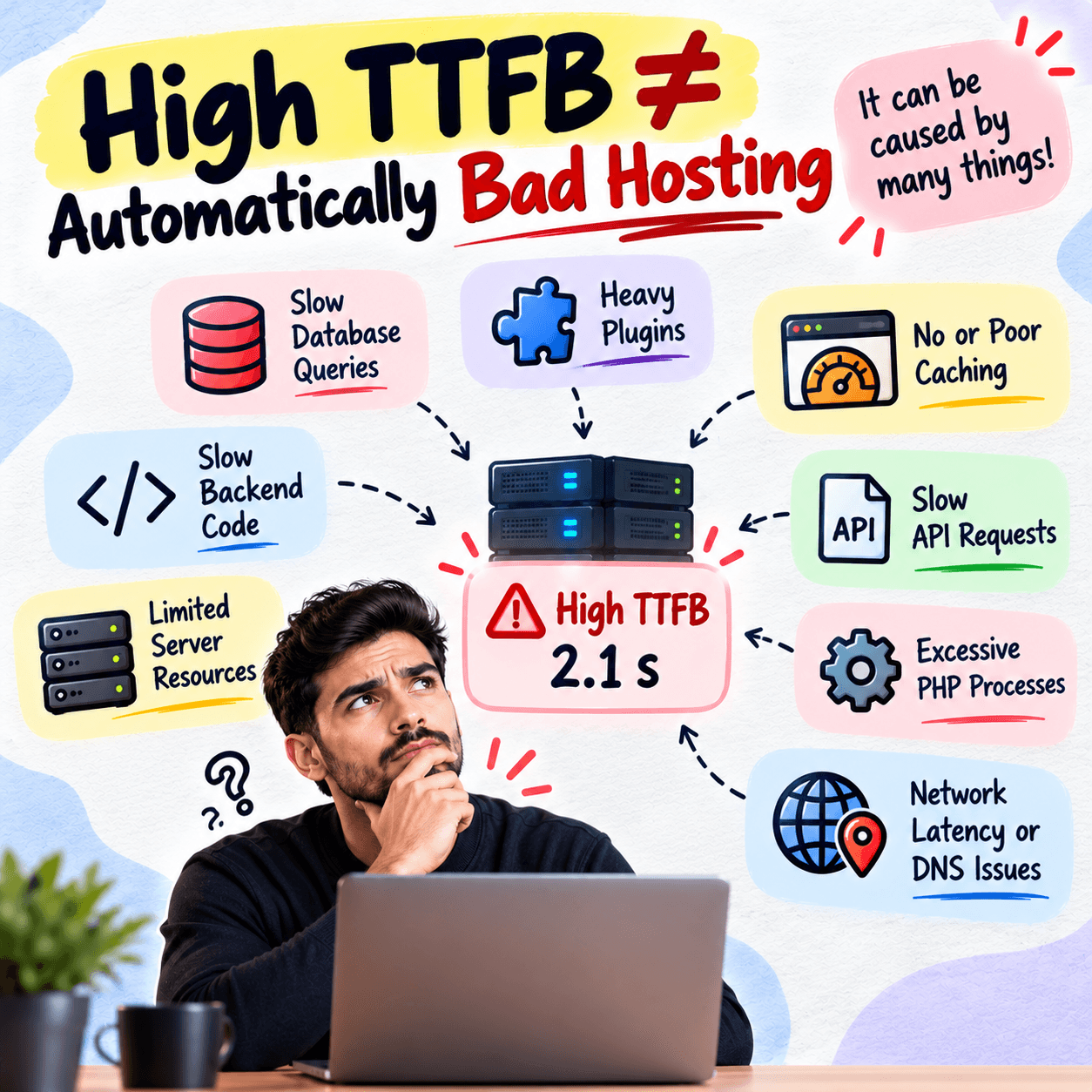
These aren't laws of physics. A page that builds dynamically (like a WooCommerce cart) will naturally take longer than a static page. But if your plain blog homepage has a TTFB of 1.5 seconds, don't ignore it.
How to test whether your hosting is the problem
Here's a practical, no-jargon process. You don't need to be a developer.
Step 1: Run a baseline speed test
Use free tools like Google PageSpeed Insights, G Tmetrix, or WebPage Test. Test your homepage and one or two important inner pages (a product page, a popular blog post).
Look at:
TTFB (sometimes labeled "server response time" or "waiting")
Largest Contentful Paint (LCP)
Total page size and number of requests
If the tool flags "Reduce initial server response time," that's a strong hint your server is dragging its feet.
Step 2: Test from more than one location
WebPageTest and GTmetrix let you pick test locations. Try a few. If your server is in the US and your visitors are in India or Australia, a high TTFB from those regions may just be distance, which a CDN (more on that below) can often fix without changing hosts.
If TTFB is high everywhere, including near your server, the problem is more likely the server itself.
Step 3: Test at different times of day
Run the same test in the morning, afternoon, and late evening, ideally over a few days. If your speed swings wildly, you could be on an overcrowded shared server where your neighbors' traffic eats into your resources.
Consistent slowness points to your site's setup. Inconsistent slowness points to the environment.
Step 4: Strip things back
This is the test that gives the clearest answer. Create a plain, empty HTML file, something like test.html with just a sentence of text, and upload it to your server. Then run a speed test on that file.
If the empty page is slow (high TTFB even though there's nothing to load), your hosting is almost certainly the problem.
If the empty page is fast but your real site is slow, your hosting is probably fine. The slowdown comes from your CMS, theme, plugins, database, or page content.
It's a bit like test-driving a car on an empty road. If it struggles there, it's not the traffic.
Step 5: Check your hosting resource usage
Most hosting dashboards (cPanel, Plesk, or a custom panel) show CPU, RAM, and bandwidth usage. Look for:
Frequent hits to resource limits
"Resource limit reached" or 508 errors
Memory errors like "Allowed memory size exhausted"
If you're regularly bumping into limits, you've either outgrown your plan or something on your site is misbehaving. Either way, you've found a lead.
Step 6: Look at your uptime and error logs
If your host provides error logs, skim them. Repeated timeouts, database connection errors, or PHP fatal errors can reveal problems that no speed test will show. A free uptime monitor like UptimeRobot can also tell you whether your site is quietly going down at odd hours.
Signs your hosting really is the problem
Not every symptom is ambiguous. These are the red flags that usually mean it's time to talk to your host, or leave:
Your TTFB is consistently high even on a nearly empty page
Speeds vary dramatically by time of day
You're on cheap shared hosting and your traffic has grown
Your site regularly goes down or throws 500, 502, 503, or 504 errors
Support blames your site every time, without actually investigating
The server runs outdated PHP versions with no easy way to upgrade
You're on spinning hard drives instead of SSD or NVMe storage
Cheap shared hosting is the classic offender. You're sharing CPU and memory with hundreds of other sites, and when one of them gets a traffic surge, everyone feels it. It's fine for a small brochure site. It's not great for a growing store or a content site with real traffic.
Signs it's not your hosting
Here's the part that saves people money. Plenty of speed problems have nothing to do with the host:
Huge, unoptimized images: A single uncompressed photo can weigh more than the rest of your page combined. Compress and resize before uploading, and consider modern formats like WebP.
Too many plugins: Every plugin adds code, database queries, and sometimes extra scripts. Ten lightweight plugins are fine. Forty heavy ones are not.
A bloated theme: Multipurpose themes that promise everything often load code for features you never use.
No caching: Without page caching, your server rebuilds every page from scratch for every visitor. Good caching can transform a slow site overnight.
Render-blocking scripts: Chat widgets, tracking pixels, heatmaps, and ad scripts add up fast.
Heavy web fonts: Loading five font weights you barely use slows the first paint.
A cluttered database: Years of post revisions, spam comments, and expired transients can slow down queries.
No CDN: Serving everything from one location means distant visitors wait longer.
If your test file loads quickly but your real pages crawl, this list is where you should be spending your time.
Quick fixes to try before you switch hosts
Before migrating anywhere, try these. Many take under an hour and cost nothing.
Turn on caching: For WordPress, plugins like WP Rocket, LiteSpeed Cache, or W3 Total Cache handle this well.
Compress your images: Tools like Squoosh, TinyPNG, or plugins like ShortPixel and Imagify do the heavy lifting.
Use a CDN: Cloudflare's free plan is a popular starting point and often improves both speed and security.
Update your PHP version: Newer PHP versions are noticeably faster. If you're on an old one, ask your host or switch it in your control panel.
Audit your plugins: Deactivate what you don't use. Delete what you don't need. Replace heavy plugins with lighter alternatives.
Lazy-load images and videos so they only load when someone scrolls to them.
Clean up your database: A good optimization plugin can remove clutter safely. Back up first.
Minimize third-party scripts: Ask of every script: is this worth the speed cost?
After each change, retest. That way you know what actually moved the needle instead of guessing.
When it's time to upgrade or switch hosting
Suppose you've done the empty-page test, optimized your site, and your TTFB is still stubbornly high. Now it's fair to point the finger at your host. What are your options?
Upgrade within your current host: Moving from basic shared hosting to a higher tier, or to a cloud or VPS plan, can be as simple as clicking a button.
Choose managed hosting: For WordPress sites, managed hosts handle server-level caching, security, and updates. You pay more, but you get speed and fewer headaches.
Go with a VPS or cloud hosting: More dedicated resources, more control, and much better consistency under load.
Pick a server location close to your audience: If most of your visitors are in one region, host there.
When comparing hosts, don't just trust marketing claims like "blazing fast" or "unlimited everything." Look for:
SSD or NVMe storage
Built-in caching
Current PHP versions
Free staging environments
Real, responsive support
Independent reviews and uptime track records
And before migrating, back up everything. A good host will often help with the move for free.
A simple decision checklist
Printing this out is optional. Reading it is not.
Is the empty test page slow? Yes → likely hosting. No → likely your site.
Is speed inconsistent through the day? Yes → likely shared server congestion.
Do you hit resource limits or see server errors? Yes → you've outgrown the plan, or something is hogging resources.
Is only the admin area slow? Likely plugins or database.
Are visitors from far away complaining? Try a CDN first.
Final thoughts
A slow website is frustrating, and it's tempting to blame the most obvious target. Hosting is certainly responsible some of the time, especially with budget shared plans and growing traffic. But more often than not, the real fix is a mix of smaller, less glamorous things: caching, image optimization, and a leaner setup.
The good news is you don't have to guess. Test the empty page, watch your TTFB, check your resource usage, and clean up the obvious clutter. Within an afternoon, you'll know whether to optimize your site, upgrade your plan, or finally say goodbye to your host.
And if you do end up moving, you'll do it for the right reason, with proof, not frustration.
Frequently Asked Questions5 FAQs
Quick answers to common questions about this topic
Under 200 ms is excellent, and anything up to around 600 ms is generally fine. If you're consistently above 800 ms to 1 second, it's worth investigating your server.
Yes. Slow server response times and frequent downtime can hurt your Core Web Vitals, crawl efficiency, and user experience, all of which can affect rankings.
No. A CDN speeds up delivery of static files and reduces distance-related delays, but it can't fix a slow, overloaded origin server for dynamic pages.
Watch for inconsistent speeds across the day, frequent resource limit warnings, and high TTFB even on simple pages. Your host's support team can also tell you how many accounts share your server.
Not always. If your site has unoptimized images, heavy plugins, or no caching, you'll still be slow on better hardware. Fix the basics first, then upgrade if needed.