Requires an accessible SQL Server database and a working SQL Server connection.
Exporting multiple tables may require configuring individual destination files.
Incorrect delimiter and encoding configurations can affect the exported data.
Does not provide a direct solution for extracting records from severely corrupted MDF files.
- SQL Server Database Is Inaccessible: If the database is marked as SUSPECT, RECOVERY_PENDING, or is otherwise inaccessible, conventional export methods may fail because they require an active database connection.
- Database Corruption: Corruption in MDF or NDF files can prevent SQL Server from reading database records. In such cases, a dedicated recovery solution may be required to scan and extract recoverable information.
- Missing Column Headers: Some command-line export methods, such as BCP, do not automatically include column headers. Additional queries or scripting may be required to include them.
- Incorrect Data Delimiters: If database records contain commas, quotation marks, or special characters, incorrect delimiter configurations can affect how the CSV file is interpreted.
- Large Database Export: Exporting large tables can take considerable time and system resources. The export process may also fail because of insufficient storage, memory limitations, or connection interruptions.
Exporting a SQL Server database to CSV is a common requirement when you need to share database records, analyze data in Excel, migrate information to another platform, or maintain an accessible copy of important records. CSV (Comma-Separated Values) is a widely supported format that stores tabular data in a simple structure, making it easy to open, edit, and import into different applications.
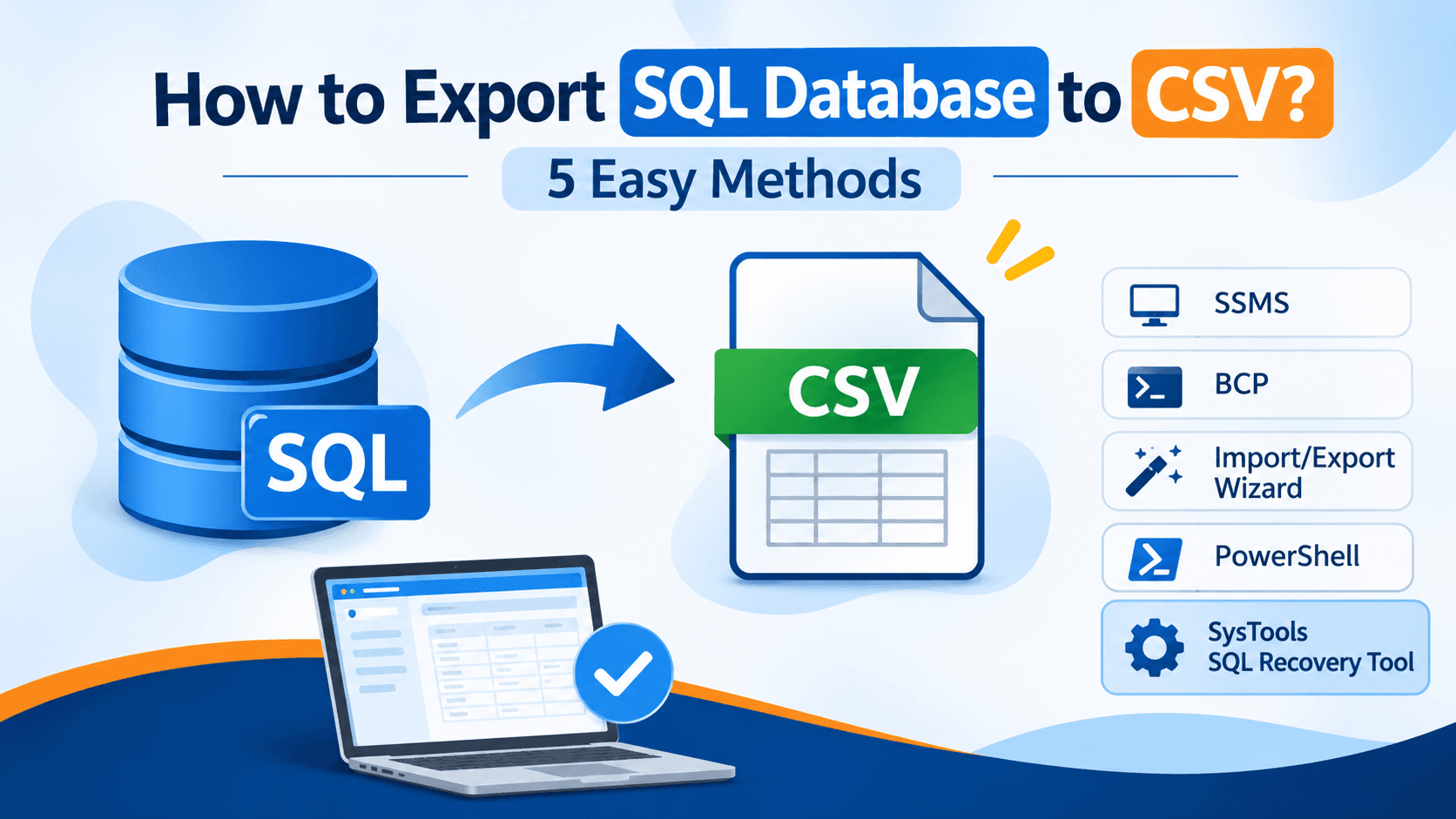
SQL Server provides several ways to export database data to CSV files. You can use SQL Server Management Studio (SSMS), T-SQL queries, the SQL Server Import and Export Wizard, PowerShell, or a dedicated SQL database recovery and export solution.
However, the right method depends on how much data you need to export, whether you want to export individual tables or an entire database, and whether your SQL Server database is accessible.
In this guide, we will explore five practical methods to export a SQL database to CSV, their limitations, and an optimal approach for exporting database records directly.
Why Export SQL Database to CSV?
Before exploring the methods, let's understand why database administrators and SQL Server users frequently export database records into CSV files.
Easy Data Sharing: CSV files can be shared across different platforms without requiring SQL Server or any database management software.
Excel Compatibility: You can open CSV files directly in Microsoft Excel and use its filtering, sorting, and analysis features.
Platform Independence: CSV is supported by almost every database management system, programming language, and data analysis application.
Data Migration: Exporting SQL Server tables to CSV makes it easier to transfer records into MySQL, PostgreSQL, cloud databases, and other applications.
Data Backup: CSV files provide an additional way to retain important table records outside the original SQL Server database.
5 Methods to Export SQL Database to CSV
There are multiple ways to export SQL Server database records into CSV format. Let's understand each method step by step.
Method 1: Export SQL Database to CSV Using SQL Server Management Studio (SSMS)
SQL Server Management Studio provides a built-in Export Data feature that allows users to export database tables into different file formats, including CSV.
This method is useful when the SQL Server database is accessible and you want to export selected tables or query results.
Steps to Export SQL Database to CSV Using SSMS:
Open SQL Server Management Studio and connect to your SQL Server instance.
Expand the Databases folder and select the database you want to export.
Right-click the database and select Tasks.
Click Export Data to launch the SQL Server Import and Export Wizard.
Select the SQL Server Native Client as the data source.
Enter the server name, authentication details, and database name.
Select Flat File Destination as the destination.
Browse and specify the CSV file location.
Configure the text qualifier, row delimiter, and column delimiter.
Select the tables or views you want to export.
Review the column mappings and click Finish to execute the export process.
Once the process completes, the exported CSV file will be available at the specified destination.
Limitations:
Requires an accessible SQL Server database and a working SQL Server connection.
Exporting multiple tables may require configuring individual destination files.
Incorrect delimiter and encoding configurations can affect the exported data.
Does not provide a direct solution for extracting records from severely corrupted MDF files.
Method 2: Export SQL Table to CSV Using T-SQL and BCP
The Bulk Copy Program (BCP) utility is a command-line tool that allows users to import and export large amounts of SQL Server data.
You can use BCP with a SQL query to export selected table records into a CSV file.
Steps to Export SQL Table to CSV Using BCP:
Open Command Prompt on your Windows system.
Ensure that the SQL Server BCP utility is installed.
Execute the following command:
bcp "SELECT * FROM DatabaseName.dbo.TableName" queryout "C:\Export\TableData.csv" -c -t, -T -S ServerName
Command Explanation:
bcp: Executes the Bulk Copy Program utility.
SELECT *: Retrieves all columns from the specified table.
queryout: Exports the query results into an external file.
-c: Exports data using character format.
-t,: Uses a comma as the field terminator.
-T: Uses Windows authentication.
-S: Specifies the SQL Server instance.
Replace the database name, table name, file path, and server name with your actual details.
Limitations:
Requires command-line knowledge and appropriate SQL Server permissions.
Does not automatically add column headers to the CSV file.
Special characters, commas, and quotation marks may require additional handling.
You must execute separate export commands for individual tables.
Method 3: Export SQL Database to CSV Using SQL Server Import and Export Wizard
The SQL Server Import and Export Wizard is another built-in option for transferring SQL Server data into external file formats.
It allows users to select specific tables, configure column mappings, and export records into a flat file.
Steps to Export SQL Database to CSV:
Open SQL Server Management Studio.
Connect to the SQL Server instance.
Right-click the database and navigate to Tasks.
Select Export Data.
Choose the SQL Server database as the source.
Select Flat File Destination as the destination.
Specify the CSV file path and name.
Configure the delimiter and text qualifier settings.
Select the tables and views you want to export.
Review the data mappings.
Click Finish to start the export operation.
The wizard will transfer the selected database records into the specified CSV file.
Limitations:
Requires a functioning database connection.
Export operations can fail due to permission issues or data conversion errors.
Large database exports may require additional configuration.
It is not suitable for directly extracting data from inaccessible or severely corrupted database files.
Method 4: Export SQL Database to CSV Using PowerShell
PowerShell provides another way to export SQL Server database records into CSV files.
The Invoke-Sqlcmd command can execute SQL queries, while Export-Csv saves the returned records into a CSV file.
Steps to Export SQL Database to CSV Using PowerShell:
Open Windows PowerShell.
Ensure that the SqlServer PowerShell module is installed.
Execute the following command:
Invoke-Sqlcmd -ServerInstance "ServerName" -Database "DatabaseName" -Query "SELECT * FROM TableName" | Export-Csv -Path "C:\Export\TableData.csv" -NoTypeInformation
Replace the server name, database name, table name, and destination path.
Press Enter to execute the command.
PowerShell will execute the SQL query and save the returned records into the specified CSV file.
Limitations:
Requires PowerShell and the appropriate SQL Server module.
Requires database connectivity and sufficient permissions.
Exporting multiple tables requires additional scripting.
Large datasets may require memory and performance considerations.
Method 5: Export SQL Database to CSV Using SysTools SQL Recovery Tool
What if you cannot connect to your SQL Server database? What if the database is corrupted, inaccessible, or the SQL Server instance is unavailable?
In such situations, conventional export methods may not work because they generally depend on an active database connection.
This is where SysTools SQL Recovery Tool provides an alternative approach.
Instead of relying entirely on a working SQL Server connection, the software allows users to load and scan SQL Server MDF and NDF files, recover accessible database records, and export the recovered data directly into CSV format.
It is particularly useful when you need to extract SQL database records from damaged or inaccessible database files.
Steps to Export SQL Database to CSV:
Download and install SysTools SQL Recovery Tool on your Windows system.
Launch the software and select the SQL Server MDF file you want to export.
Choose the appropriate scanning option to analyze the database file.
Allow the software to scan and display the recoverable database objects.
Preview the recovered tables and their corresponding records.
Select the database objects you want to export.
Choose CSV as the export format.
Specify the destination location for the exported files.
Start the export process.
The software will recover the selected database records and save them directly as CSV files.
Key Features of SysTools SQL Recovery Tool:
Direct CSV Export: Export recovered SQL Server database records directly into CSV format without performing an intermediate database restoration.
MDF and NDF File Recovery: Load and scan SQL Server database files to identify recoverable records.
Offline Recovery: Recover database records without requiring an active SQL Server instance.
Selective Export: Preview database objects and select the required tables for export.
Multiple Export Options: Export recovered database data into supported formats, including SQL Server scripts and CSV.
Database Object Recovery: Recover supported database objects such as tables, views, stored procedures, functions, and triggers.
Data Preview: Preview recovered records before exporting them to the selected destination.
For users dealing with inaccessible or corrupted SQL Server databases, SysTools provides a practical alternative to conventional export methods. Its direct CSV export functionality eliminates the need to first restore the database to a working SQL Server environment.
Common Challenges While Exporting SQL Database to CSV
Although SQL Server provides several export options, users may encounter different problems during the process.
SQL Server Database Is Inaccessible: If the database is marked as SUSPECT, RECOVERY_PENDING, or is otherwise inaccessible, conventional export methods may fail because they require an active database connection.
Database Corruption: Corruption in MDF or NDF files can prevent SQL Server from reading database records. In such cases, a dedicated recovery solution may be required to scan and extract recoverable information.
Missing Column Headers: Some command-line export methods, such as BCP, do not automatically include column headers. Additional queries or scripting may be required to include them.
Incorrect Data Delimiters: If database records contain commas, quotation marks, or special characters, incorrect delimiter configurations can affect how the CSV file is interpreted.
Large Database Export: Exporting large tables can take considerable time and system resources. The export process may also fail because of insufficient storage, memory limitations, or connection interruptions.
Which Is the Best Method to Export SQL Database to CSV?
There is no single method that works best for every SQL Server export requirement.
If your SQL Server database is healthy and accessible, SSMS and the Import and Export Wizard are convenient options. BCP is useful for bulk exports, while PowerShell is suitable for automated export operations.
However, if your database is corrupted, inaccessible, or you cannot establish a connection to the SQL Server instance, these conventional methods may not be sufficient.
In that situation, SysTools SQL Recovery Tool is an optimal approach because it provides both SQL database recovery and direct CSV export capabilities.
You can load the MDF or NDF file, scan the database, preview recoverable records, select the required tables, and export them directly into CSV format.
This makes it particularly useful for database administrators and IT professionals who need to retrieve important SQL Server records without depending on a working SQL Server instance.
Conclusion
Exporting a SQL Server database to CSV is straightforward when the database is healthy and accessible. You can use SSMS, BCP, the Import and Export Wizard, or PowerShell to export database tables and records.
However, these methods may not work when the database is corrupted, inaccessible, or the SQL Server instance is unavailable. In such situations, SysTools SQL Recovery Tool offers an optimal alternative. It allows users to scan MDF and NDF files, preview recoverable database records, and export selected tables directly into CSV format without requiring an active SQL Server connection.
Therefore, if you need a reliable way to extract SQL Server data, especially from corrupted or inaccessible databases, SysTools provides a practical recovery and direct CSV export solution.
Frequently Asked Questions4 FAQs
Quick answers to common questions about this topic
You can export SQL Server database tables into CSV files using SSMS, the Import and Export Wizard, BCP, or PowerShell. Since CSV is a tabular format, individual tables are generally exported as separate CSV files.
You can use the SQL Server Import and Export Wizard or PowerShell to export table records with column headers. BCP does not automatically include column headers, so additional configuration is required.
Yes. You can use BCP, PowerShell, or a dedicated SQL database recovery and export tool to save SQL Server records in CSV format.
Yes, provided the database contains recoverable records. A dedicated SQL recovery solution such as SysTools can scan corrupted MDF and NDF files, identify recoverable database objects, and export the recovered records into CSV format.