Moving email accounts from an IMAP server to Microsoft 365 involves more than transferring messages. Organizations must prepare source mailboxes, configure destination accounts, verify authentication, map users correctly, and decide which email data needs to be transferred. Without proper preparation, migration projects can face login failures, incomplete folders, duplicate messages, and unexpected delays.
A structured preparation process helps IT administrators manage mailbox transfers more efficiently while maintaining access to important business correspondence.
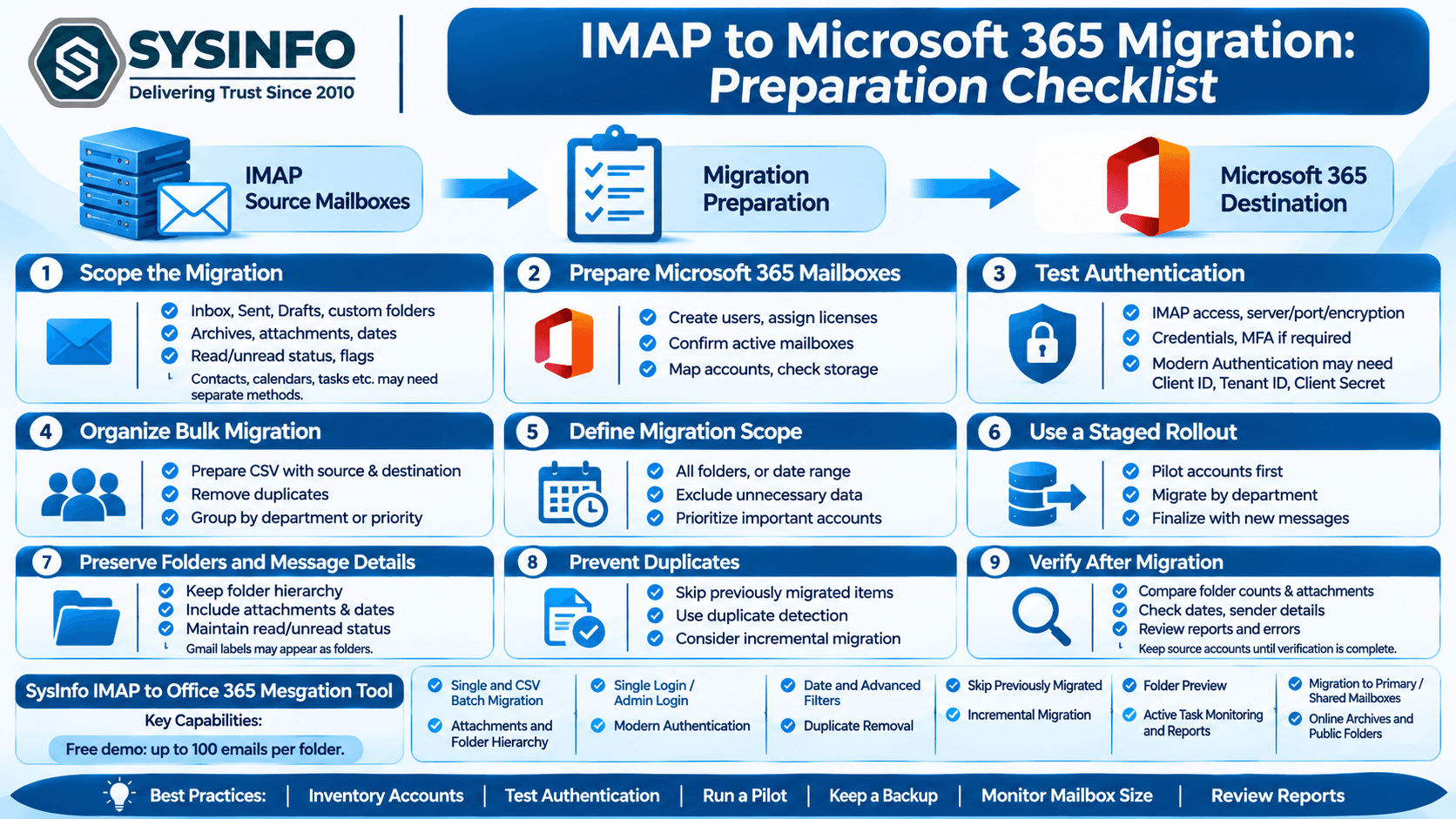
1. Understand the Scope of Your IMAP Migration
Before starting, identify which mailboxes need to move and what information they contain. IMAP migration primarily deals with email data stored on the source server.
Review the following mailbox components:
Inbox and Sent Items
Drafts and custom folders
Archived email folders
Email attachments
Original message dates
Read and unread status
Standard message flags, where supported
It is equally important to understand what an IMAP email migration does not normally transfer. Contacts, calendars, tasks, notes, mailbox rules, signatures, and forwarding settings may require separate migration methods.
Preparing this inventory helps administrators establish realistic migration expectations and avoid overlooking important information.
2. Prepare Microsoft 365 Destination Mailboxes
Every destination user should have an appropriate Microsoft 365 mailbox before the migration begins. Administrators should verify that the accounts exist, the required licenses are assigned, and users can access their destination mailboxes.
Check these details before proceeding:
Create the required Microsoft 365 user accounts.
Assign suitable Exchange Online licenses.
Confirm that destination mailboxes are active.
Verify administrator access where tenant-level authentication is required.
Match source email addresses with the correct destination users.
Review available mailbox storage.
Correct account mapping is particularly important when transferring dozens or hundreds of mailboxes. A mapping mistake can send email data to the wrong destination account.
3. Check IMAP Server Details and Authentication
Source mailbox connectivity is one of the most important parts of migration preparation. Administrators should confirm the IMAP server address, port number, encryption settings, and login credentials.
Some email providers require additional authentication steps. For example, accounts protected by multi-factor authentication may require an app password or another supported authentication method.
Before running a large migration, test a few source accounts and confirm that:
IMAP access is enabled.
Server and port details are correct.
Credentials are valid.
Security settings are compatible.
The account can connect from the migration environment.
Microsoft 365 administrator authentication should also be configured according to the selected migration method. Modern Authentication may involve an application registration with a Client ID, Tenant ID, and Client Secret.
Testing authentication in advance can prevent repeated connection failures during the actual transfer.
4. Organize Mailboxes for Bulk Migration
When an organization needs to migrate multiple IMAP accounts, handling each mailbox individually can increase administrative effort. A structured account list makes bulk migration easier to coordinate.
Prepare a spreadsheet or CSV file containing the necessary source and destination account information. Review each entry carefully before importing it into the migration application.
A useful preparation checklist includes:
Source email address
Source login credentials
IMAP server information, if required
Destination Microsoft 365 account
User or department identification
Migration priority
Special account requirements
Remove duplicate entries and verify that every source mailbox has a valid destination. For larger projects, group accounts by department, business unit, or migration schedule.
5. Decide Which Emails Should Be Migrated
Not every mailbox requires the transfer of every message. Some organizations need complete historical email records, while others only need recent correspondence or selected folders.
Define the migration scope before starting the process.
For example, administrators may choose to:
Transfer all available mailbox folders.
Migrate messages within a particular date range.
Exclude unnecessary email categories.
Prioritize important business mailboxes.
Review large attachment collections separately.
Date-based selection can be useful when an organization wants to move recent communication first and handle older archives through a separate process.
A clear migration scope also helps administrators estimate storage requirements and plan the transfer schedule.
6. Plan a Staged Migration Instead of Moving Everything at Once
Large organizations may prefer a staged migration because moving every mailbox simultaneously can make monitoring and troubleshooting difficult.
A practical approach is to divide the migration into smaller groups:
Stage 1: Pilot accounts
Select a few representative mailboxes and test the complete migration process. Include accounts with different folder structures, message volumes, and attachment sizes.
Stage 2: Department-level migration
Move mailboxes in manageable groups. Review migration reports and verify the destination data after each batch.
Stage 3: Remaining mailboxes
Continue with the remaining accounts after resolving issues identified during earlier stages.
Stage 4: Final synchronization
Check whether new messages have arrived on the source server since the initial transfer. Run another migration pass where supported to transfer previously unmigrated items.
This staged approach gives administrators more control over progress and makes it easier to identify problems before they affect the entire organization.
7. Preserve Folder Structure and Message Information
Mailbox organization is important for employees who depend on historical conversations for daily work. A migration should maintain the relationship between messages and their original folders wherever supported.
During the migration, verify that:
Inbox and Sent folders are transferred correctly.
Custom folders remain organized.
Attachments are accessible.
Original message dates are retained.
Read and unread status is preserved.
Supported flags remain associated with messages.
Gmail labels, for example, may appear as folders in the destination rather than retaining their original label behavior. Administrators should communicate such differences to users before migration.
8. Avoid Duplicate Emails During Repeat Migration Runs
Migration projects sometimes require multiple transfer sessions. This may happen when accounts are migrated in stages, when new messages arrive during the project, or when a previous run is interrupted.
Without appropriate controls, repeated transfers can create duplicate email records.
Use migration options that can skip previously migrated items and identify duplicate messages. Where available, compare message attributes such as sender, recipient, subject, message body, CC, and BCC to identify repeated records.
Incremental migration can also help transfer items that were not included in an earlier run without repeating the entire mailbox transfer.
9. Use Dedicated Software for Controlled IMAP to Microsoft 365 Transfers
Organizations managing multiple IMAP accounts may need a dedicated application to simplify mailbox selection, account mapping, authentication, filtering, and migration reporting.
SysInfo IMAP to Office 365 Migration Tool is designed to transfer email data from IMAP and supported POP3 accounts to Microsoft 365. It supports single-account migration as well as batch processing through CSV files.
Its key capabilities include:
Migration of emails with attachments.
Preservation of supported folder hierarchy and message information.
Single Login and Admin Login options.
Modern Authentication using application credentials.
Date-based and advanced email filtering.
Duplicate removal and skip previously migrated options.
Incremental migration for subsequent transfer runs.
Folder preview and selective mailbox selection.
Migration to primary mailboxes, shared mailboxes, online archives, and public folders.
Active task monitoring and migration reports.
The application also supports migration from common IMAP environments, including Gmail, Yahoo, Zoho, and private or business IMAP servers. Administrators should review the supported account requirements and destination configuration before starting.
A free demo is available to evaluate the workflow, with a limit of up to 100 emails per folder. This allows users to test connectivity and review the migration process before proceeding with a licensed version.
10. Verify the Migration After Completion
A completed migration task does not automatically mean that every mailbox has been checked. Post-migration verification is necessary to identify missing folders, incomplete transfers, or unexpected differences.
Administrators should compare selected source and destination mailboxes and review:
Total email counts in important folders.
Presence of attachments.
Message dates and sender details.
Custom folder organization.
Read and unread status.
Migration reports and error details.
Messages received during the migration period.
Ask a small group of users to verify their migrated mailboxes before closing the project. Keep the original IMAP accounts accessible until the organization has confirmed that the required data is available in Microsoft 365.
Best Practices for a Successful IMAP to Microsoft 365 Migration
A few practical measures can make the migration process more manageable:
Maintain a mailbox inventory: Keep an updated list of source and destination accounts.
Test authentication early: Resolve login and server connectivity problems before bulk migration.
Run a pilot migration: Use representative mailboxes to evaluate the process.
Prioritize important accounts: Move critical departments according to business requirements.
Monitor mailbox size: Large mailboxes may require additional time because of server-side throttling.
Use incremental migration carefully: Transfer newly received or previously unmigrated messages where supported.
Keep a backup: Preserve a separate copy of important email data before making changes to source accounts.
Review migration reports: Investigate errors instead of assuming every mailbox transferred successfully.
Conclusion
Preparing IMAP mailboxes properly is an essential part of moving an organization to Microsoft 365. Account inventory, destination mailbox configuration, authentication testing, user mapping, and migration scheduling all contribute to a more controlled transfer process.
By following a staged approach and verifying the results after each migration run, administrators can reduce common problems and maintain better control over organizational email data. For projects involving multiple mailboxes, dedicated migration software can further simplify account processing, filtering, incremental transfers, and reporting.