Microsoft Access databases often hold critical business data: customer records, inventory, financial entries, internal reports. To protect that data, many users set a password on the file. That works well until the password is forgotten, the employee who set it leaves, or you inherit an old .mdb or .accdb file with no documentation.
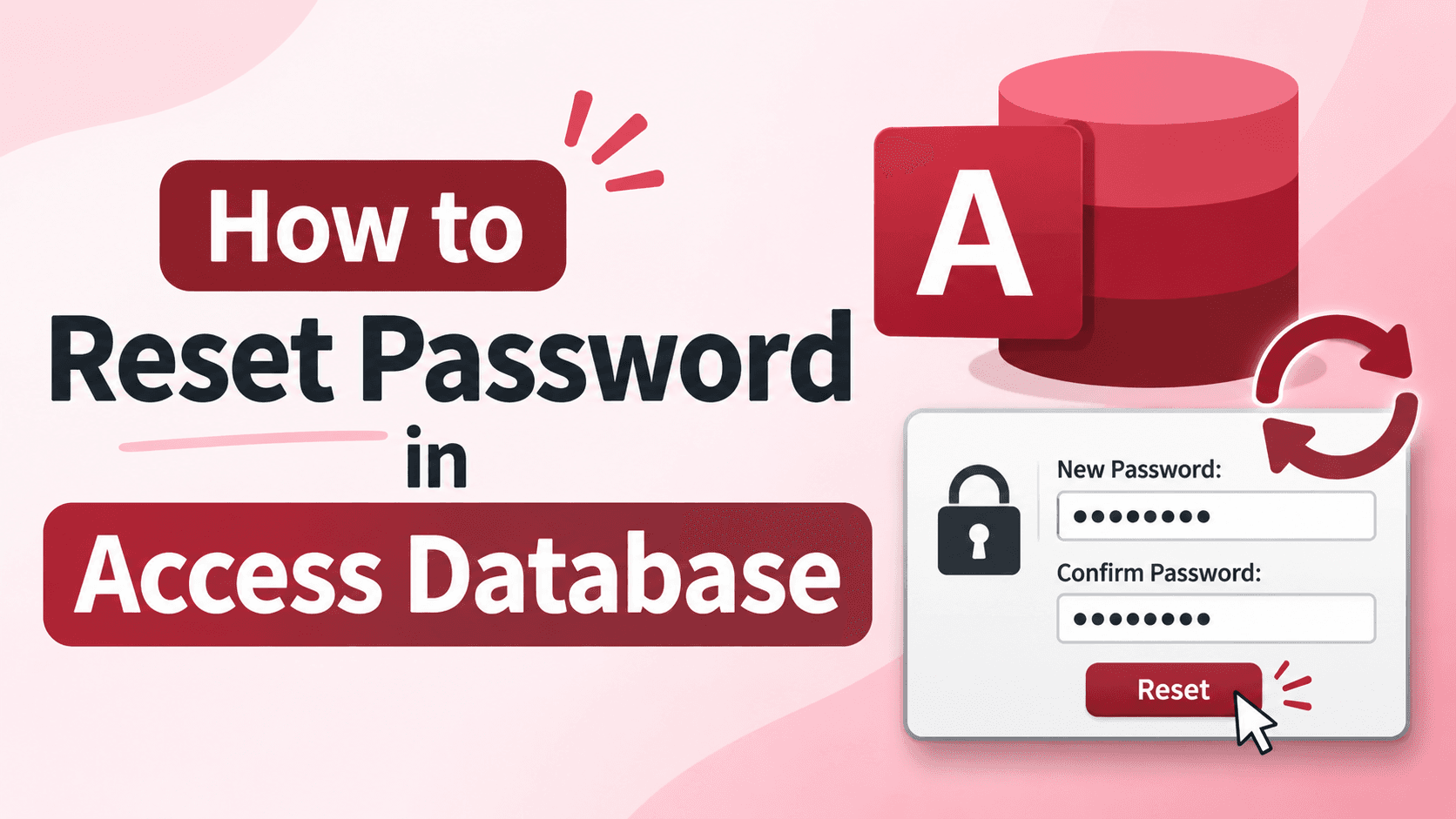
If you are locked out, this guide explains your options and shows the most practical way to reset Access database password for both MDB & ACCDB files.
Can You Reset an Access Database Password?
Microsoft does not offer a "Forgot Password" option for Access files. There is no email reset link and no support channel that can unlock the file for you. The password is tied to the database's encryption, so if you don't know it, you cannot simply override it from within Access.
That leaves two realistic paths: remember or locate the password, or use a dedicated recovery tool.
Method 1: Try to Find the Password Yourself
Before using any tool, rule out the easy options.
Check with colleagues or the previous owner. The person who created the file may still remember it.
Look in your password manager or browser. Saved credentials sometimes include database passwords.
Search old documentation. IT handover notes, emails, and project files sometimes contain it.
Try common variations. Company names, project names, or years, if you have a reasonable guess about how the creator thinks.
Avoid guessing endlessly. It wastes time and rarely works on a password you genuinely don't remember.
Method 2: Use a Backup or Unprotected Copy
Check whether an older, unprotected version of the file exists. Look in:
Email attachments from before the password was set
Network drives and shared folders
Cloud storage and file history
Automated backups and USB drives
If you find one, you can open it normally and set a new password under File → Info → Encrypt with Password (for .accdb files) after opening the database in exclusive mode.
Method 3: Reset the Password Using Expert Solution (Recommended)
When no backup exists and nobody remembers the password, a dedicated tool is the most dependable option. SysTools Access Password Recovery is built for this situation. It recovers the password of a protected Access database so you can open the file again, without needing technical or scripting skills.
Steps to recover your Access password:
Download and launch SysTools Access Password Recovery on your Windows system.
Click Browse or Add File and select the password-protected .mdb or .accdb file.
Start the recovery process and let the tool scan the file.
Once the password is displayed, copy it.
Open the database in Microsoft Access and enter the recovered password.
Your database opens with all tables, queries, forms, and reports intact.
Why use a dedicated recovery tool?
No coding or technical knowledge needed: a few clicks are enough.
Supports multiple Access formats: works with older .mdb files as well as newer .accdb files.
Data stays intact: recovery does not modify your tables, queries, or records.
Works offline: your file stays on your own machine, which is important for confidential business data.
Saves time: avoids hours of manual guessing.
Method 4: Reset the Password After Recovery
Once you can open the database, it is a good idea to reset the password right away so you are not stuck again.
To change or remove the password in Access:
Open the database in Exclusive mode (File → Open → select the file → click the arrow next to Open → Open Exclusive).
Go to File → Info.
To change it, click Encrypt with Password (or Decrypt Database if you want to remove it), enter the current password, and then set the new one.
Save and close the database.
Reopen the file to confirm the new password works.
Tips to Avoid Getting Locked Out Again
Store passwords in a password manager rather than in your head or a sticky note.
Keep an unprotected backup in a secure, access-controlled location.
Document database passwords in your team's IT records.
Use strong but memorable passwords, such as a passphrase.
Share ownership, so more than one authorized person knows how to access critical files.
Final Thoughts
A forgotten Access password does not have to mean lost data. Start by checking with colleagues and looking for unprotected backups. If those fail, a professional tool gives you a fast, code-free way to regain access to your database. Once you are in, reset the password, store it safely, and keep a backup so you never face the same problem again.
Frequently Asked Questions3 FAQs
Quick answers to common questions about this topic
No. A recovery tool reads the password and leaves your tables, queries, and forms untouched. It is still smart to keep a copy of the file before you start.
Check the supported versions on the SysTools product page before you buy, as support can vary by Access version and encryption type.
Yes, when the database belongs to you or your organization. Only use recovery tools on files you are authorized to access.