Imagine you have saved hundreds of contacts in an Excel spreadsheet. It could be a customer list, your business connections, or simply a collection of important phone numbers. Now, you want all these contacts on your Android phone. Would you really want to save every number one by one? That could take hours!
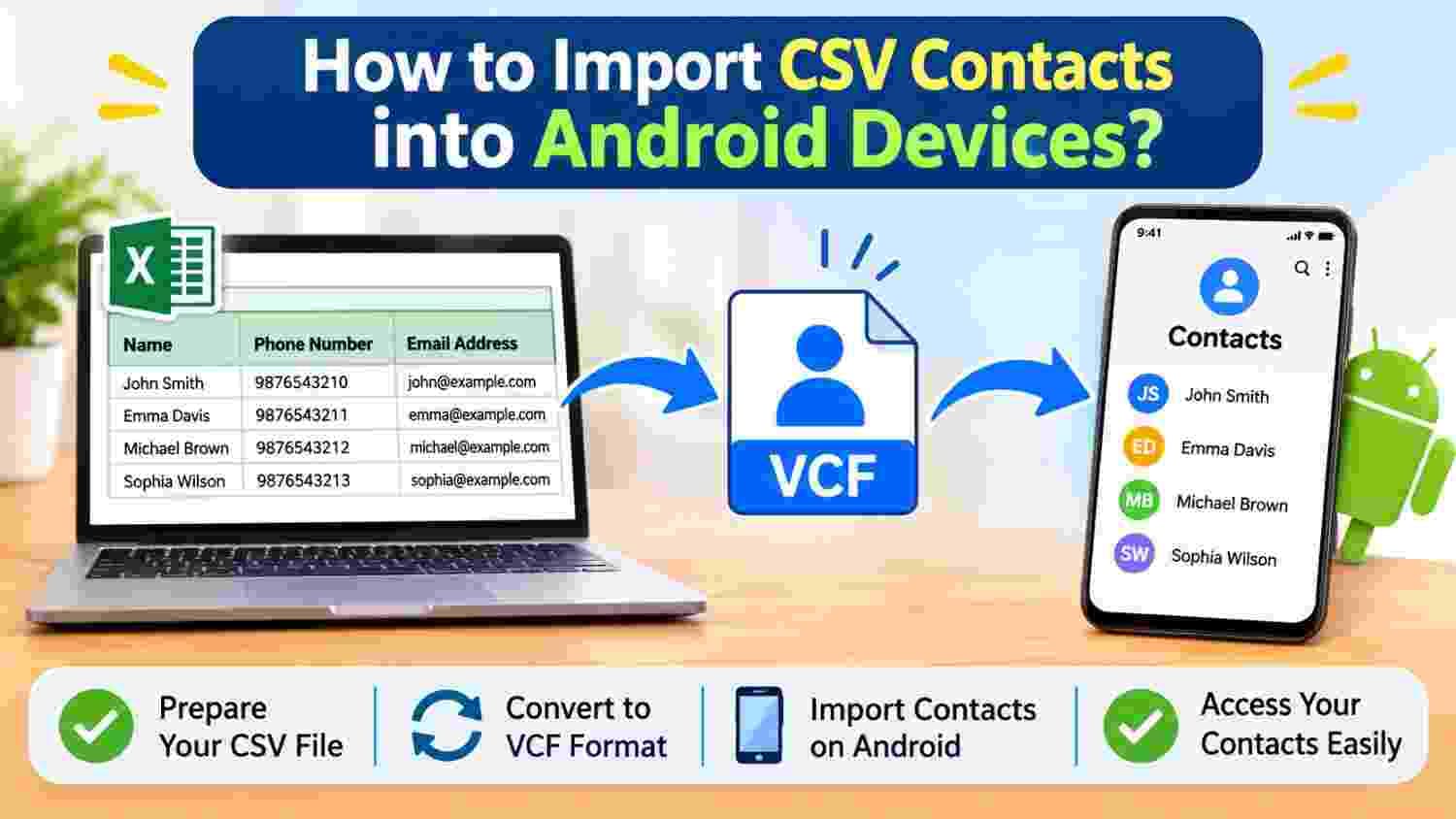
Fortunately, there is a simpler way to move your contact information to an Android device. If your contacts are stored in a CSV file, you can prepare them in a compatible format and import them into your phone.
In this guide, we will walk through the process step by step, from preparing your spreadsheet to checking the imported contacts. Let's get started!
First, Understand Why CSV Contacts Need Preparation
CSV files are useful for storing contact information in rows and columns. You might have columns for names, phone numbers, email addresses, company names, and other details.
The problem is that many Android Contacts applications do not offer a direct option to import CSV files. Their import options can vary depending on the device and application.
This is where the VCF (vCard) format becomes useful. It is widely used to exchange contact information between phones and contact management applications. So, converting your CSV contacts into VCF format can make the transfer process more convenient.
Step 1: Give Your Contact List a Quick Cleanup
Before moving anything to your phone, take a few minutes to review your spreadsheet. Think of it as cleaning your address book before moving it to a new home!
Here is what you should check:
Names: Make sure first names and last names are placed in the correct columns.
Phone numbers: Check for missing digits, incorrect country codes, or unnecessary spaces.
Email addresses: Remove typing mistakes and incomplete email entries.
Duplicate contacts: Look for repeated names or phone numbers.
Empty records: Remove blank rows that do not contain useful information.
A little preparation now can save you from fixing contact details later.
Step 2: Turn Your CSV File into a VCF File
Now comes the important part: preparing your contacts for Android.
Since many Android contact applications support VCF files, you can convert your spreadsheet into this format before importing it. A utility such as PCDOTS CSV to vCard Converter can help users prepare CSV-based contact information in vCard format.
Once the conversion is complete, save the resulting VCF file somewhere easy to find. You will need it in the next step.
Step 3: Move the VCF File to Your Android Phone
Your contact file is ready, but how do you get it onto your phone?
There are several simple ways to transfer it. Choose whichever method is most convenient:
Option 1: Using a USB Cable
Connect your Android phone to your computer, open its storage, and copy the VCF file into an accessible folder.
Option 2: Using Email
Attach the VCF file to an email, send it to yourself, and open the attachment from your Android phone.
Option 3: Using Google Drive
Upload the file to Google Drive from your computer. Open Drive on your phone and download the file.
Option 4: Using a File-Sharing App
You can also use a trusted file-sharing application to move the VCF file from your computer to your phone.
Choose the method that works best for you. Just make sure the complete file is available on your Android device.
Step 4: Import Your Contacts and Check the Results
Now for the final step! Once the VCF file is on your phone, you can import the contacts.
Follow these general instructions:
Open the Contacts application on your Android device.
Navigate to Settings or the contact management menu.
Find an option such as Import or Import from file.
Select the VCF file saved on your phone.
Choose where you want to save the contacts, if your device asks.
Wait for the import process to finish.
That's it! Your contacts should now appear in your address book.
Note: Menu names and options may differ between Samsung, Google Pixel, and other Android devices.
A Few Tips to Keep Your Android Address Book Organized
Getting contacts onto your phone is only half the job. Keeping them organized is equally important.
Save a backup of your original CSV file.
Store important contacts under the correct Google or device account.
Review duplicate entries from time to time.
Keep phone numbers and email addresses updated.
Export or back up your contacts before changing devices.
These small habits can make managing your digital address book much easier.
Final Thoughts
Moving contacts from a CSV spreadsheet to an Android phone doesn't have to be a time-consuming task. With a little preparation, the right file format, and a few simple steps, you can transfer your contact information without entering every detail manually.
Before finishing, take a moment to check the imported names, phone numbers, and email addresses. A quick review will help ensure your new Android address book is ready to use