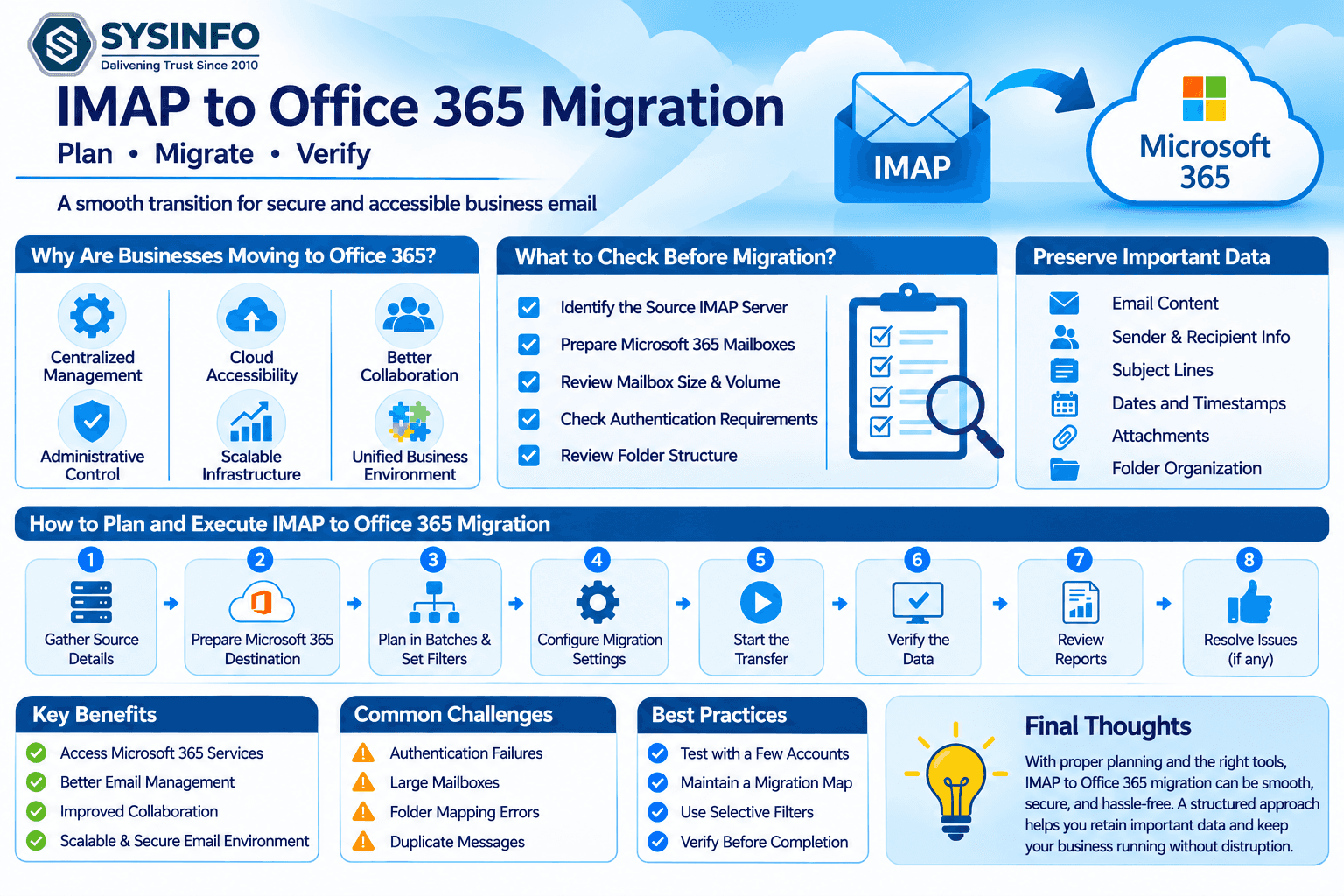
Moving email accounts from an IMAP-based platform to Microsoft 365 requires careful preparation, especially when an organization manages multiple mailboxes. The process involves more than transferring messages. Administrators must review source accounts, prepare destination mailboxes, configure authentication, preserve folder organization, and verify the transferred data.
A structured migration plan helps businesses reduce disruptions and maintain access to important email correspondence. Whether an organization is moving a few accounts or handling a large mailbox transfer, understanding the technical requirements beforehand can make the process easier to manage.
This article explains the important considerations for IMAP to Office 365 migration, including mailbox assessment, destination preparation, migration planning, and post-transfer verification.
Why Are Businesses Moving IMAP Mailboxes to Office 365?
Many organizations use IMAP accounts with hosted email providers or privately managed mail servers. As business requirements change, they may decide to move their email environment to Microsoft 365.
Some common reasons for this transition include:
Centralized email management: Administrators can manage employee mailboxes through a Microsoft 365 tenant.
Cloud accessibility: Employees can access supported Microsoft 365 services from different locations and devices.
Business collaboration: Users can work with Outlook and other Microsoft applications.
Administrative control: IT teams can manage mailbox access, permissions, and organizational policies.
Scalable email infrastructure: Organizations can manage mailbox requirements as their workforce changes.
Unified business environment: Moving email accounts to Microsoft 365 can simplify communication management.
Before starting, administrators should understand the source email environment and determine which mailboxes need to be transferred.
What Should You Check Before IMAP to Office 365 Migration?
Migration preparation helps identify potential problems before they affect the transfer. Review the following areas before connecting the source and destination environments.
1. Identify the Source IMAP Server
Start by collecting information about the existing IMAP email environment. Different email providers may use different server addresses, ports, encryption settings, and authentication requirements.
Record the following details:
Source email addresses
IMAP server hostname
IMAP port number
SSL/TLS connection requirements
Account authentication details
Approximate mailbox size
Number of folders and messages
Confirm that the source accounts are accessible before beginning the migration.
2. Prepare Microsoft 365 Destination Mailboxes
Each source mailbox should have an appropriate destination in Microsoft 365. Administrators should create the required user accounts and confirm that their mailboxes are provisioned.
Check these requirements:
The Microsoft 365 tenant is active.
Destination user accounts have been created.
Required licenses are assigned.
Mailbox storage is sufficient.
Administrative permissions are available where required.
Microsoft 365 authentication is working correctly.
Testing a destination mailbox before migrating the remaining accounts can help identify configuration issues early.
3. Review Mailbox Size and Message Volume
Mailbox size directly affects migration planning. Accounts containing several years of correspondence, large attachments, or numerous folders may require additional processing time.
Prepare an inventory of mailbox sizes and prioritize accounts according to business requirements. This information can help administrators divide a large migration project into manageable batches.
4. Check Authentication Requirements
Authentication is an important part of IMAP migration. The source provider may require an account password, app password, or another supported authentication method. Microsoft 365 may also require Modern Authentication or an approved sign-in process.
Verify the authentication requirements for both environments before starting. This can help prevent connection failures and repeated login attempts.
5. Review Folder Structure
Business mailboxes often contain custom folders used to organize customer communication, invoices, project discussions, and internal correspondence.
Identify the folders that need to be transferred and determine how they should appear in the destination mailboxes. Folder mapping is particularly important when migrating several users because it helps maintain a consistent email organization.
Important Data to Preserve During IMAP Migration
Email migration should preserve the information employees need for their daily work. Administrators should identify the important mailbox elements before transferring data.
Email content: Preserve the actual message body and relevant correspondence.
Sender and recipient information: Retain the original sender, recipient, and other available message details.
Subject lines: Maintain recognizable email subjects for easier searching.
Dates and timestamps: Check that message dates remain available after migration.
Attachments: Verify that important attached files remain accessible.
Folder organization: Preserve the required mailbox folders and subfolders.
Maintaining these details helps employees locate historical correspondence after the migration.
How to Plan a Large IMAP Mailbox Migration
Transferring multiple accounts requires a different approach from moving a single mailbox. A migration plan helps administrators control account processing, destination mapping, and verification.
Create a Source-to-Destination Mapping Sheet
Prepare a spreadsheet that connects each source IMAP account with its corresponding Microsoft 365 mailbox. Include account status, migration priority, and completion details.
This is useful for organizations with multiple departments because it reduces the possibility of transferring emails to an incorrect destination.
Divide Mailboxes into Migration Batches
Instead of processing every account simultaneously, organize mailboxes into smaller groups. You can prioritize departments or users according to business requirements.
For example, an organization may begin with a small group of test accounts, review the results, and then continue with the remaining employees.
Apply Selective Migration Filters
Some mailboxes contain unnecessary or outdated correspondence. Selective migration can help organizations focus on the data they need to retain.
Depending on the migration requirements and available software options, administrators may use date-based filters, folder selection, and duplicate-management settings.
Maintain Migration Records
Keep a record of processed accounts, transferred folders, completed batches, and any errors. Migration reports can help administrators identify incomplete transfers and determine which accounts need further attention.
Direct IMAP Migration vs. Local Email Backup
Organizations can approach email migration through direct mailbox transfer or by creating a separate local backup before moving their data.
Direct Migration to Microsoft 365
Direct migration transfers supported email data from the source IMAP environment to the selected Microsoft 365 mailboxes. This approach can be useful when an organization wants to move its email accounts without creating an intermediate PST archive.
Depending on the migration application and account configuration, administrators may be able to process individual mailboxes or use batch processing for multiple accounts.
Local Email Backup
A local backup creates a separate copy of email data in a supported file format. This can be useful for long-term preservation, independent access, or maintaining an additional copy before migration.
For example, organizations may choose PDF when they need readable email records for documentation or archiving. You can learn more in our guide on how to convert IMAP emails to PDF.
For organizations that need direct mailbox transfers, the SysInfo IMAP to Office 365 Migration Tool provides migration options for transferring supported IMAP mailbox data to Microsoft 365.
The software supports single and batch mailbox processing, Modern Authentication, folder mapping, selective email filters, duplicate removal, incremental transfers, and migration reports.
How to Manage IMAP to Office 365 Migration Using Dedicated Software
A dedicated migration application can help organize the transfer process. The following stages describe a typical workflow; the exact options depend on the selected application and account configuration.
Step 1: Select the IMAP Migration Option
Launch the migration application and select the option for transferring data from an IMAP account to Microsoft 365.
Step 2: Enter Source Account Details
Provide the required IMAP account information, including the email address, server details, port, and authentication credentials.
Step 3: Authenticate the Microsoft 365 Account
Connect the destination Microsoft 365 environment using the supported authentication method. Complete the required authorization process.
Step 4: Select Source Mailbox Data
Review the available folders and select the email data that needs to be transferred. Apply the required date or other supported filters.
Step 5: Map Destination Mailboxes
Choose the correct Microsoft 365 destination mailbox for each source account. Review the mapping carefully before continuing.
Step 6: Configure Migration Settings
Review folder mapping, duplicate handling, and other available migration settings. If the application supports incremental transfers, configure them according to the migration plan.
Step 7: Start the Transfer
Check the source and destination details, then initiate the migration. For large projects, monitor the process and review the status of each account.
Step 8: Review Migration Reports
After the transfer, examine the available reports. Identify failed, skipped, or incomplete items and determine whether additional processing is required.
How to Verify Data After Migration
Verification is an essential part of the migration process. Administrators should confirm that important email data is available in the destination mailboxes before closing the project.
Use the following checklist:
Compare the source and destination email counts for important folders.
Open sample messages from different date ranges.
Check sender, recipient, subject, and date information.
Open selected attachments to confirm their accessibility.
Review folder names and subfolder organization.
Identify missing or duplicated messages.
Check migration reports for errors or skipped items.
Confirm that employees can access their Microsoft 365 mailboxes.
Keep the original IMAP accounts available until the transferred data has been reviewed and approved.
Common Challenges During IMAP to Office 365 Migration
Authentication Failures
Incorrect credentials, unsupported authentication settings, or account security restrictions can prevent a connection. Verify the source and destination authentication requirements before retrying.
Mailbox Size Limitations
Large mailboxes may require additional storage and processing time. Review the available destination capacity and any applicable message-size restrictions.
Folder Mapping Errors
Incorrect folder mapping can make migrated emails difficult to locate. Review the source and destination folder structure before starting the transfer.
Duplicate Messages
Repeated migration attempts can result in duplicate messages. Maintain records of completed batches and use available duplicate-management settings where appropriate.
Incomplete Attachment Transfers
Attachments should be checked separately from message counts. Open selected messages and confirm that important files are accessible after migration.
Interrupted Migration Sessions
Network interruptions or authentication problems can affect large transfers. Monitor migration progress and review reports to identify accounts or folders that require another attempt.
Best Practices for a Successful Migration
Follow these recommendations to maintain better control over the migration process:
Prepare a complete inventory of source IMAP accounts.
Verify Microsoft 365 destination mailboxes before transferring data.
Test the process with a small number of accounts.
Maintain an accurate source-to-destination mapping sheet.
Review mailbox size and storage requirements.
Use selective filters when only specific email data is required.
Keep a separate backup of important correspondence where necessary.
Review migration reports and resolve incomplete transfers.
Verify messages and attachments before completing the project.
These practices help administrators maintain better control over the migration process and reduce the risk of overlooking important mailbox information.
Final Thoughts
IMAP to Office 365 migration requires careful planning, correct authentication, accurate mailbox mapping, and post-migration verification. Organizations managing multiple accounts should prepare their source and destination environments before beginning the transfer.
A structured migration process helps administrators maintain mailbox organization and identify potential issues before they affect employees. Direct migration software can also simplify account processing, selective transfers, and migration reporting.
For organizations that need to preserve IMAP email correspondence in a readable document format, our related guide explains how to convert IMAP emails to PDF.