Windows 8 received a decent amount of enhancements on the desktop side that I tend to appreciate versus running Windows 7, even if that means I get Metro standing in the middle here and there occasionally. One such area of improvement is notification management and how it handles updates and system restarts. Running the final version of the OS for a few months now, it's been a painless affair until this past weekend.I shut down my desktop PC with the purpose of connecting new hardware and on the way out I was prompted to "update and shutdown". Sure, why not. I went on to install a secondary SSD for maintenance purposes and apparently that was enough for my system to refuse booting right after. I tried to backtrack to no avail.
"Reboot and select proper boot device"
I bet you have no love for the message, neither do I. Because I had disconnected a few devices, it took me a while to narrow things down to my boot SSD, and for a second I even thought the SSD had gone forever kaput. After booting with a different drive and noting I could read all my data on the drive in question, I took a deep breath and started to troubleshoot the boot record. Once you settle on the idea that it's not a hardware problem and you are unable to boot up, your best bet is to try to fix the MBR (Master Boot Record). With a long history of dual booting different versions of Windows over the years, finding a corrupt MBR, boot sector, or Boot Configuration Data (BCD) is nothing new, but it took me longer than usual to come to a solution. Here are a few things you can try and hopefully get back to full speed in no time.First of all, you will need a bootable disc or pen drive.
Here's a quick guide to accomplish that if you don't already have one handy. Although it's not a requirement, to be on the safe side it's recommended at this point that you disconnect other storage devices from your PC and leave only the SSD/HDD that you are troubleshooting.
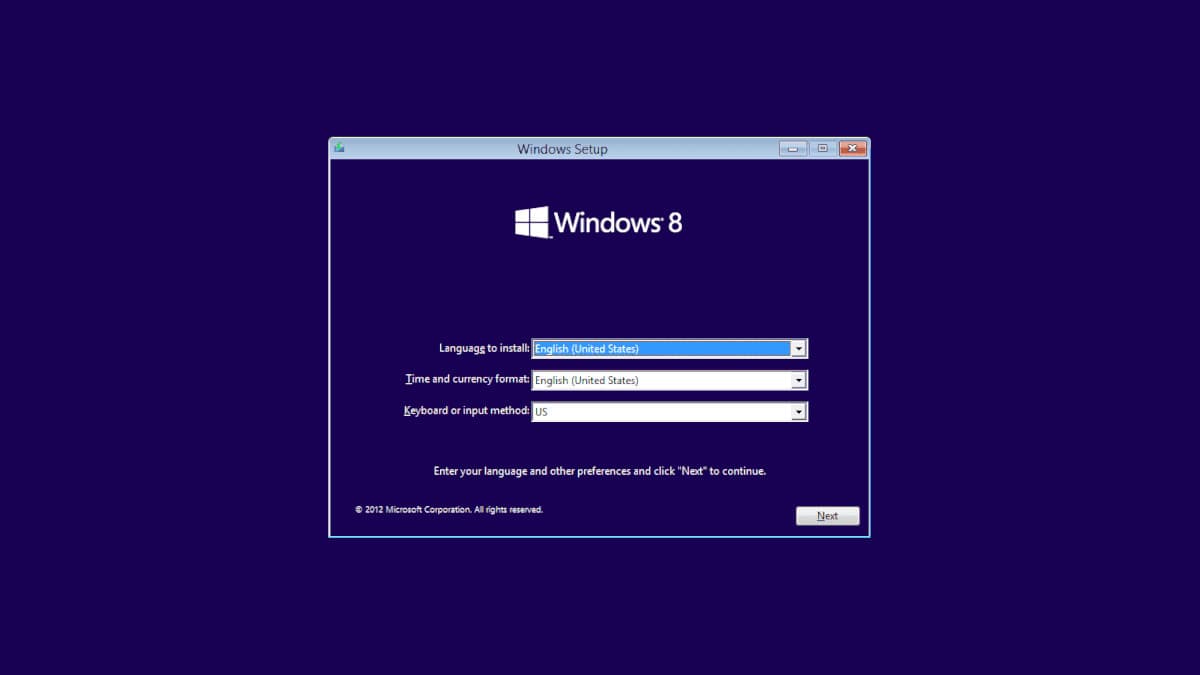
Booting into the Windows 8 setup, select "Repair your computer" in the bottom part of the window, then "Troubleshoot" and "Advanced options". Here I was given a good reminder of another cool Windows 8 feature. If you have a restore point created you can go back to that working copy of the OS without losing your data. Well, I didn't have any.
So the first thing you will want to try is the Automatic Repair.
If that fixes your boot problem, you had it easy and go on to create a restore point for another time you are out of luck. If Windows is unable to fix your issue, read on.Go back to the Advanced options and choose the Command Prompt. Going for the next easiest way to fix the problem, enter the following four commands into the prompt:
- bootrec /fixmbr
- bootrec /fixboot
- bootrec /scanos
- bootrec /rebuildbcd
After receiving a success confirmation. Close the CMD window and restart your PC. If you are booted into Windows, excellent! If not, let's try one last thing. Follow the previous steps until you have landed into the Command Prompt. Enter the "bcdedit" command. A lists of items will appear under Windows Boot Manager and under Windows Boot Loader. Look for the following items: * Under Windows Boot Manager, the Device item should be set to unknown.* Under Windows Boot Loader, the Device and OS device items should be set to unknown. Run the following three commands to correct the settings:
- bcdedit /set {default} device partition=c:
- bcdedit /set {default} osdevice partition=c:
- bcdedit /set {bootmgr} device partition=c:
One last thing is to try though in theory, it's the repeating what we've done before, browse to the folder X:SourcesRecovery and then enter "StartRep.exe" which executes another automated startup repair utility.