Changing from a Mac computer to a Windows system involves more than transferring documents, photos, and other personal files. Email archives also need attention, especially when you have years of important conversations saved in an email application. Without proper preparation, older messages may become difficult to access on the new computer.
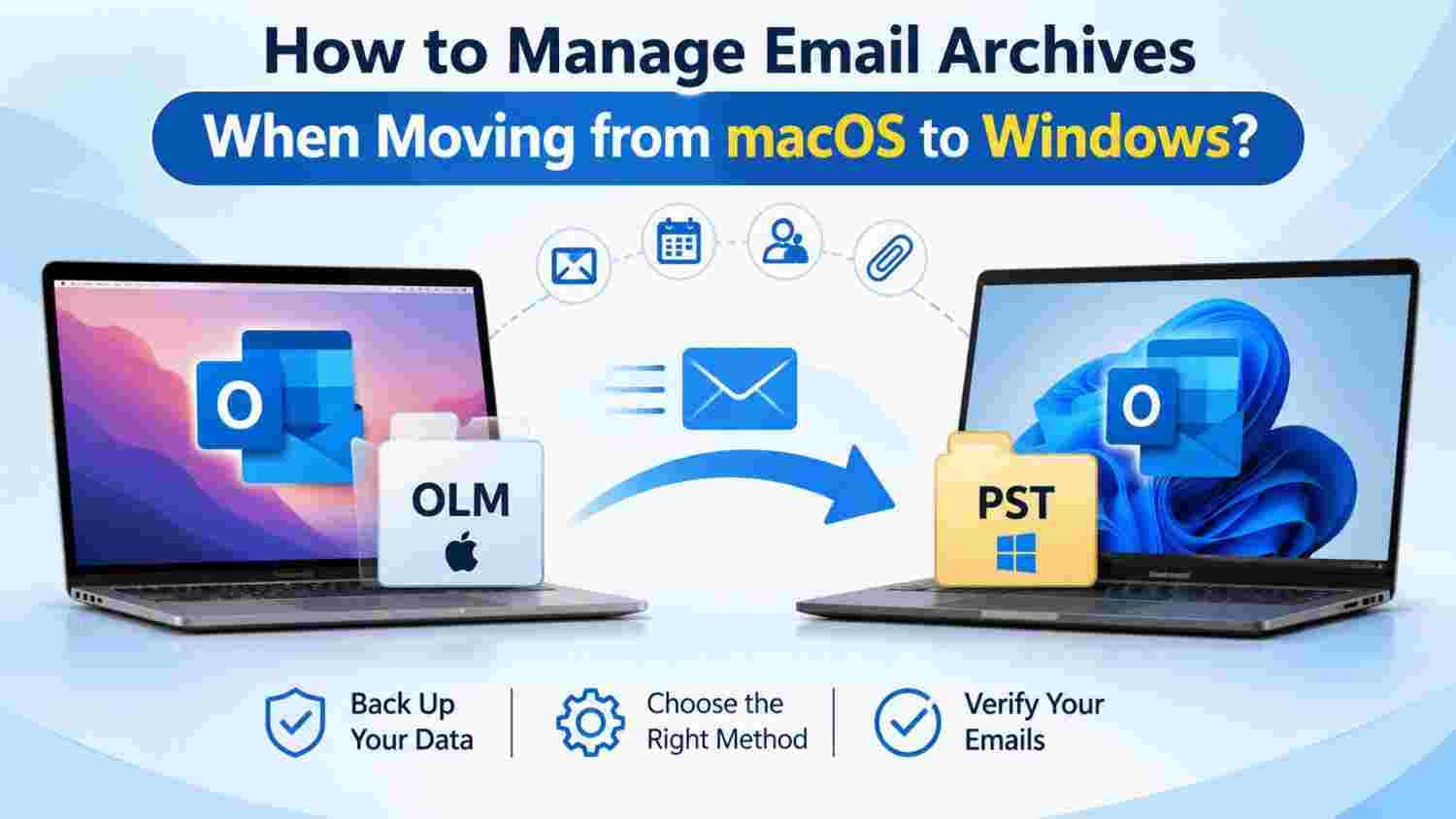
Mac and Windows systems can use different email applications and storage formats. For example, Outlook for Mac uses OLM files for exported mailbox data, while Outlook for Windows commonly works with PST files. This difference makes email archive management an important part of the transition.
1. Identify Where Your Emails Are Stored
Before moving anything, check how your current email application stores messages. Some emails may remain on the mail server, while others may exist only in locally saved archives.
This distinction matters because server-synchronized messages can often be accessed again by signing in to the same account on Windows. However, locally stored messages may require a separate transfer process.
Make a note of:
Email accounts currently configured on your Mac.
Locally saved mailbox archives.
Important folders and older conversations.
Attachments or records that must remain accessible.
2. Create a Separate Backup Before the Move
Avoid relying on a single copy of your email archive. Export or copy the available mailbox data and save it to an external drive or another secure storage location.
Keep the original files unchanged until the migration is complete. If something goes wrong during transfer or conversion, the backup gives you a reliable source to work with.
It is also useful to organize archives by account, year, or project. This makes it easier to locate specific records later.
3. Understand the Difference Between OLM and PST
One common challenge appears when moving Outlook data from Mac to Windows. Outlook for Mac can export mailbox information in OLM format, but Outlook for Windows generally uses PST for importing and managing mailbox data.
An OLM file cannot simply be opened in Windows Outlook by changing its file extension. The data needs to be transferred through a compatible method or converted into a format supported by the target application.
If conversion is required, a utility such as PCDOTS OLM Converter can be considered after checking its supported output formats and suitability for the intended migration.
4. Choose the Right Method for Your Email Archive
The best approach depends on where your messages are stored and which application you plan to use on Windows.
For server-based email: Configure the same email account in your Windows email client. Messages that are still available on the server can synchronize again.
For locally stored archives: Use a compatible import process or convert the archive into a format accepted by your new email application.
For long-term reference: If you only need to read older conversations occasionally, consider keeping a separate archive copy in an accessible format rather than importing everything into your active mailbox.
5. Check Your Data After Migration
A successful transfer should be verified rather than assumed. Open the migrated mailbox and review a sample of messages from different folders.
Pay attention to:
Whether important emails are present.
Whether folder organization is maintained.
Whether attachments open correctly.
Whether message dates and sender details appear as expected.
Whether special characters and message formatting remain readable.
If you notice missing information, compare the migrated data with your original backup before deleting or replacing anything.
6. Keep the Original Archive for Future Use
Even after the new Windows email setup is working, retain the original macOS archive for a reasonable period. Older conversations may become important for personal records, business communication, or future reference.
Store the backup in a clearly named folder and maintain another copy in a secure location if the information is important. This small step can prevent unnecessary problems later.
Final Thoughts
Moving email archives from macOS to Windows requires a little planning, particularly when locally stored mailbox files are involved. By identifying the storage format, creating backups, selecting a compatible migration method, and checking the transferred messages, users can make the transition more organized and reduce the risk of losing access to older conversations.
A careful migration is not just about moving emails to a new computer. It is about keeping useful communication available when you need it.