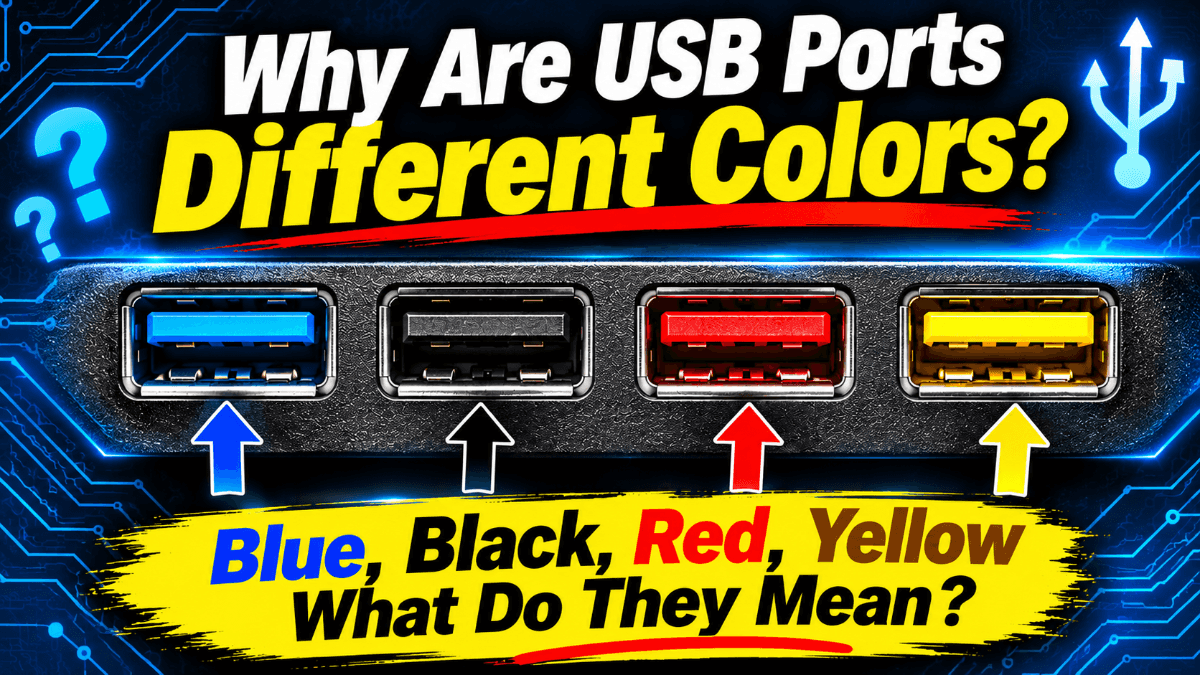
Have you ever looked at the USB ports on your computer and wondered why some are blue, some are black, and others are red or yellow?
At first glance, these colours might look like a simple design choice made by computer manufacturers. But there's more to the story. The colour inside a USB port can often give you a clue about its data transfer speed, technology generation, or even its charging capabilities.
But how did this colour convention develop? And why can a small change in colour make such a big difference when choosing the right USB port?
Let's explore the fascinating history behind USB port colours.
Beginning: The Birth of USB
USB, short for Universal Serial Bus, arrived in 1996. It was developed by a team at Intel, with Ajay Bhatt among its key co-inventors. The idea was simple and ambitious: replace the messy pile of different connectors on the back of a computer with one universal port.
It worked. But the first version was slow, with a top speed of just 12 Mbps. Copying a large file, like an HD movie, meant waiting a very long time. You could make tea, eat a meal and still find the progress bar stuck somewhere in the middle.
At this stage, color did not matter much. Most ports looked the same, usually white, black or beige.
2008: When Speed Increased 400x, But the Shape Stayed the Same
Fast-forward to 2008, and engineers faced a clever design dilemma.
With the arrival of USB 3.0, data transfer speeds jumped dramatically—nearly 400 times faster than the original standard. However, to ensure backward compatibility, the physical shape of the classic rectangular USB-A connector remained virtually identical. Every old cable still had to fit into every new port.
That created an immediate usability problem: if a USB 1.0 port, a USB 2.0 port, and a super-fast USB 3.0 port all looked identical on the outside, how would an everyday user know which one to plug a high-speed external drive into without pulling out a magnifying glass?
The industry’s solution was simple, intuitive, and didn't require a single word of instruction: color coding.
The Simple Fix: Color Coding
The USB 3.0 specification recommended coloring the port blue (Pantone 300C). One look, and you know it is the fast one. No manual, no label, no guesswork.
That is the real reason blue ports exist. They are a visual signal that says, "use me for fast transfers."
What About Red and Yellow Ports?
This is where it gets interesting. Red, yellow and orange ports are usually not about speed at all.
They are typically sleep-and-charge ports, also called always-on USB ports. Even when your laptop is in sleep mode, or sometimes completely shut down, these ports keep supplying power. That means you can charge your phone, earbuds or power bank without keeping your computer awake.
So a single color can tell you whether a port is built for speed or for power, without reading a single word.
Are USB Port Colours a Universal Standard?
Here is what most articles skip. USB port colors are a widely followed convention, but the only color the specification actually recommends is blue for USB 3.0. Everything else depends on the manufacturer.
Some brands use red for charging, others use yellow or orange. Some use black for a fast port. Some skip color altogether and print a small symbol instead.
So do not judge a port by its color alone. If speed really matters, check your device's manual or look for the SS (SuperSpeed) logo near the port.
How to Identify the Right USB Port on Your Computer
If you want faster file transfers or better charging performance, here are a few things to remember:
For faster file transfers: Look for the SuperSpeed USB marking or check the manufacturer's specifications. Blue is a useful clue, but not a guarantee.
For older peripherals: USB 2.0 ports are generally sufficient for devices such as keyboards and mice.
For charging devices: Check whether your laptop supports Always-On USB or Sleep-and-Charge functionality.
For accurate information: Always check your computer's specifications instead of relying entirely on port colours.
Also, remember that actual transfer speeds depend on the USB port, cable and connected device. All three must support the required standard to achieve its full potential.
What Happened to Colors in the USB-C Era?
Modern laptops and phones use USB-C, and these ports have no color coding at all. They all look the same, yet one can be a slow USB 2.0 connection while another supports 40 Gbps or fast charging. Ironically, we are back to the original problem: identical ports with very different abilities.
How do you tell them apart now? That is a story for another day, but the short version is symbols, cable markings and the specifications of your device.
Final Thoughts
Those small splashes of color on your laptop were never random decoration. They were a clever answer to a real engineering problem: how do you make faster technology without changing how it looks? Next time you plug something in, take a second to notice the port. It has been trying to tell you something all along.
Frequently Asked Questions4 FAQs
Quick answers to common questions about this topic
Usually, yes. Blue typically indicates USB 3.0 or higher, while black often indicates USB 2.0. But manufacturers do not always follow this, so verify with the specs when it matters.
Not necessarily. Red or yellow ports usually provide power even when the device is asleep, but that does not always mean a higher charging speed.
Yes. USB is backward compatible, so older devices work fine in newer ports. They will just run at their own, slower speed.
No. USB-C ports are not color coded, so check the symbols near the port or your device specifications.