Google Workspace has become an essential platform for businesses, educational institutions, and professional teams. Organizations use Gmail for communication, Google Drive for document storage, Google Calendar for scheduling, and Google Contacts for managing business relationships. These services contain important information that needs to remain accessible even when accounts are accidentally deleted, employees leave, or organizations change their IT infrastructure.
Although Google Workspace provides cloud-based storage, relying entirely on online access may not be sufficient for every business requirement. Accidental deletion, administrative mistakes, account changes, and migration projects can create situations where organizations need an independent copy of their data.
A structured Google Workspace backup strategy helps businesses preserve important information, maintain control over archived records, and prepare for unexpected data loss. This article explains the data that should be backed up, available backup approaches, common challenges, and important considerations when selecting a backup solution.
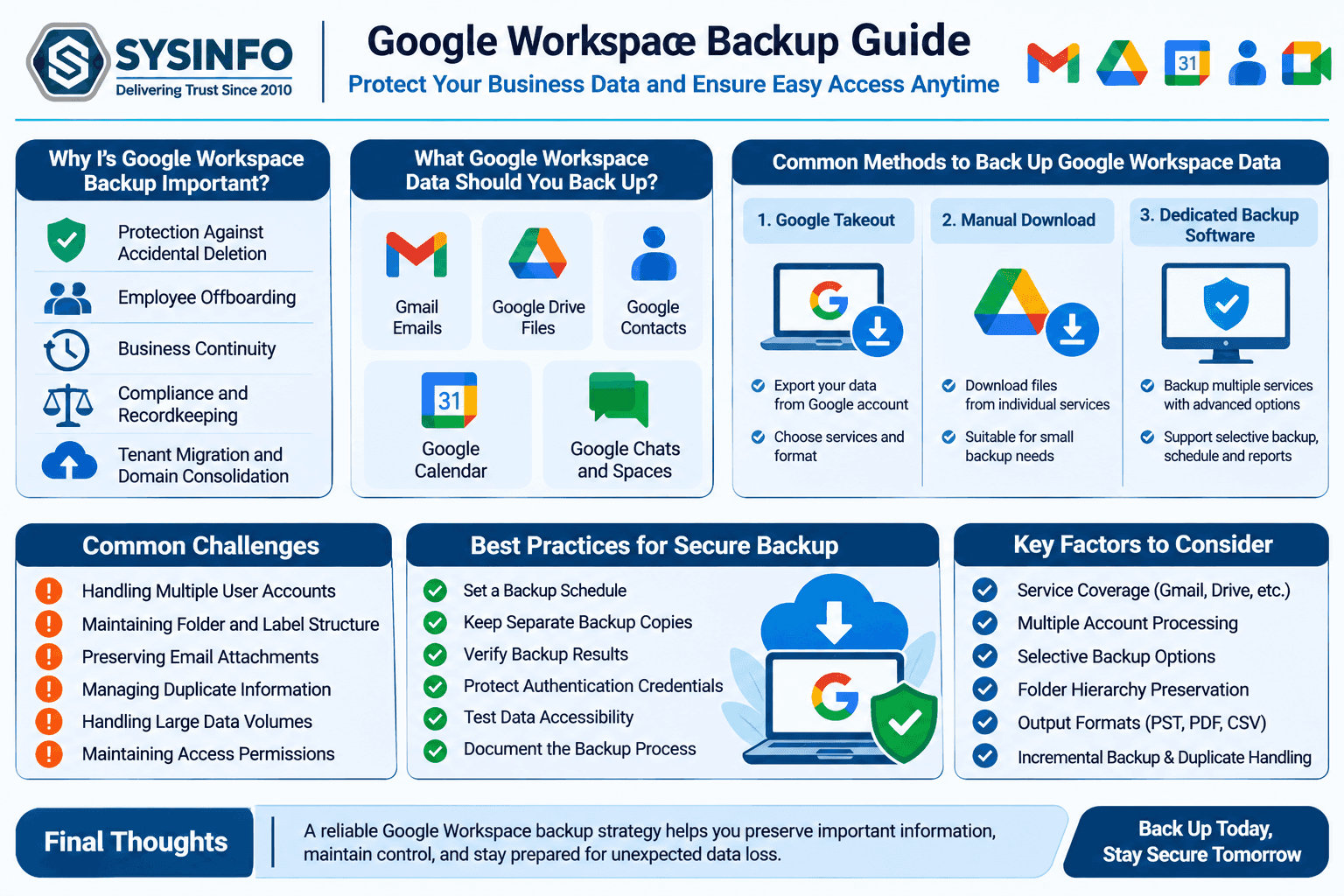
Why Is Google Workspace Backup Important?
Google Workspace stores different types of business information across multiple services. Losing access to one account or service can affect daily operations, customer communication, and project activities.
Here are some common reasons organizations maintain separate backups.
1. Protection Against Accidental Deletion
Employees may accidentally delete important emails, documents, folders, or calendar entries. A separate backup provides another copy that can be used when the original information is no longer available.
2. Employee Offboarding
When an employee leaves an organization, their Gmail messages, Drive documents, contacts, and calendar information may still be required by managers or other departments.
Backing up relevant information before account deactivation helps preserve important business records.
3. Business Continuity
Unexpected account access problems, administrative errors, or technical disruptions can affect access to business information. Maintaining independent copies helps organizations prepare for such situations.
4. Compliance and Recordkeeping
Some organizations need to retain email conversations, documents, and other records for internal audits, legal reviews, or organizational policies. A structured backup process makes it easier to maintain accessible archives.
5. Tenant Migration and Domain Consolidation
Businesses moving from one Google Workspace tenant to another may need to preserve mailbox information, Drive files, contacts, calendars, and collaboration data. A backup can provide an additional reference copy during the transition.
What Google Workspace Data Should You Back Up?
A complete backup strategy should consider more than Gmail. Different Workspace services contain information that may be important for business operations.
Gmail Emails
Gmail contains incoming and outgoing messages, attachments, labels, and conversations. Business mailboxes may include customer inquiries, invoices, contracts, internal discussions, and project updates.
A useful backup should preserve important message properties, including sender, recipient, subject, date, message content, and attachments.
Google Drive Files
Google Drive stores documents, spreadsheets, presentations, PDFs, images, and other business files. Organizations should consider backing up both individual My Drive content and relevant Shared Drive information.
Folder hierarchy and file organization are important because they help employees locate archived information after restoration.
Google Contacts
Google Contacts may contain customer details, supplier information, employee records, and other professional connections. Exporting contacts helps maintain access to important address book information outside the original account.
Google Calendar
Calendar information includes meetings, appointments, reminders, and scheduled events. Maintaining calendar backups can help preserve business schedules and historical event records.
Google Chats and Spaces
Google Chat contains direct messages, group conversations, Spaces discussions, and shared information. Businesses that depend on these services should evaluate whether their backup requirements include collaboration conversations and associated files.
The exact information available for backup depends on the selected method, account permissions, and software support.
Common Methods to Back Up Google Workspace Data
Organizations can choose different backup approaches depending on the amount of data, technical resources, and required level of control.
Method 1: Google Takeout
Google Takeout allows users to download copies of supported information from their Google accounts.
General steps:
Sign in to the Google account.
Open Google Takeout.
Select the Google services whose data you want to export.
Configure the export format and available options.
Choose the delivery method.
Create the export and wait for Google to prepare the archive.
Download the generated files.
This method is useful for occasional personal exports. However, managing multiple business accounts, recurring backups, selective migration, and centralized reporting may require additional administration.
Method 2: Manual Download from Google Services
Users can download individual files from Google Drive, export contacts, and save selected mailbox information using available service options.
This approach may work for small backup requirements. However, manually handling multiple accounts and large amounts of information can become time-consuming. Maintaining folder structures and organizing downloaded records also requires additional effort.
Method 3: Use Dedicated Google Workspace Backup Software
A dedicated backup solution can help organizations manage multiple Workspace services through a centralized process.
Depending on the software, users may be able to back up Gmail, Drive, Contacts, Calendars, and supported Chat data. Additional options such as selective filters, batch processing, duplicate handling, and migration reports can make larger backup projects easier to manage.
Common Challenges During Google Workspace Backup
Backing up business data involves more than downloading files. Organizations may encounter several technical and administrative challenges.
1. Handling Multiple User Accounts
Businesses with dozens or hundreds of employees need an organized way to process multiple accounts. Connecting each mailbox individually can increase the time required for large backup projects.
CSV-based batch processing and administrator-level authentication can simplify account management when supported by the selected solution.
2. Maintaining Folder and Label Structure
Gmail labels and Google Drive folders help users organize their information. If the backup process does not preserve the original hierarchy, locating archived content may become difficult.
Before selecting a backup method, verify how it handles labels, folder structures, and associated metadata.
3. Preserving Email Attachments
Business emails frequently contain invoices, reports, contracts, and other important attachments. A backup process should retain attachments with their corresponding messages or provide an appropriate option to save them separately.
4. Managing Duplicate Information
Repeated backup operations may process previously saved messages or files. Duplicate-handling options can help reduce unnecessary copies and maintain a more organized archive.
5. Handling Large Data Volumes
Large Gmail accounts and Drive repositories may take considerable time to process. Internet connectivity, API limitations, system resources, and file sizes can affect the backup duration.
For large projects, administrators should consider incremental processing and supported resume options.
6. Maintaining Access Permissions
Authentication is an important part of Workspace backup. Individual account access and domain-wide administrative access have different requirements.
Administrators should verify the necessary permissions, API access, and authentication configuration before starting a backup.
Important Factors to Consider When Choosing Google Workspace Backup Software
Not every backup utility supports the same Google services or output formats. Evaluate the following factors before selecting a solution.
Service coverage: Check whether the software supports Gmail, Google Drive, Contacts, Calendar, and other required services.
Multiple account processing: Look for batch backup options when handling several employee accounts.
Selective backup: Date filters and other selection criteria can help users back up only the required information.
Folder hierarchy preservation: Verify whether Gmail labels and Drive folder structures remain organized.
Attachment management: Check how the software handles attachments and shared files.
Output formats: Confirm that the available formats match your archiving, reporting, or migration requirements.
Authentication options: Review OAuth 2.0, application credentials, and administrator-level authentication support.
Incremental backup: This can reduce repeated processing by handling new or modified information during subsequent runs.
Duplicate management: Check whether the application can identify previously transferred information.
Backup reports: Detailed reports help administrators review completed, skipped, and failed items.
How SysInfo Google Workspace Backup Tool Helps Manage Workspace Data
For organizations that need to back up multiple Google Workspace services, a dedicated solution can simplify data management.
The SysInfo Google Workspace Backup Tool provides backup and migration options for Gmail, Google Drive, Contacts, Calendars, and supported Google Chat data. It allows users to save information locally in supported formats or transfer data directly to selected destination platforms.
Its key capabilities include:
Backup of multiple Google Workspace accounts.
Batch account processing through CSV mapping.
Modern OAuth authentication and Workspace Admin Domain-Wide Delegation options.
Export of Gmail data to PST, PDF, MBOX, and CSV.
Export of contacts to VCF and calendars to ICS.
Backup of Google Drive files, including supported Docs, Sheets, and Slides content.
Conversion of supported Google documents into Microsoft Office formats during migration.
Migration to another Google Workspace account, Microsoft 365, and supported Exchange Server destinations.
Selective backup using date and email filters.
Preservation of supported mailbox metadata, labels, and folder hierarchy.
Duplicate handling and skip-previously-migrated options.
Incremental migration and resume functionality.
Detailed reports showing completed, skipped, and failed items.
The software processes backup and migration jobs on the user's local machine. This allows administrators to manage the workflow from their own system rather than relying on a third-party server to store their account credentials.
The available functionality and supported data types depend on the selected migration workflow, account permissions, and destination platform.
Steps to Back Up Google Workspace Data
The general process for using dedicated backup software involves the following stages.
Download and install a compatible Google Workspace backup application.
Launch the software and select the required backup or migration option.
Choose an authentication method and connect the source Google Workspace account.
Provide the required permissions or administrator credentials.
Select the Workspace services and user accounts that need to be processed.
Configure destination settings, such as a local folder or supported cloud platform.
Apply available filters to select specific emails, dates, or data categories.
Review the selected accounts and migration settings.
Start the backup process and monitor its progress.
Review the generated report to identify completed, skipped, or unsuccessful items.
For large organizations, testing the process with a limited number of accounts before beginning a full backup can help identify configuration or permission issues.
Which Formats Are Useful for Google Workspace Backup?
The appropriate format depends on how the backed-up information will be accessed later.
PST - Accessing archived emails through compatible Outlook applications
PDF - Documenting email conversations and maintaining readable records
MBOX - Storing mailbox data for compatible email clients
CSV - Organizing information in rows and columns for reporting
VCF - Saving contact information
ICS - Preserving calendar events
DOCX - Working with supported document content in Microsoft Word
XLSX - Accessing spreadsheet content in Microsoft Excel
PPTX - Opening presentations in Microsoft PowerPoint
Choosing an appropriate format before starting a backup can reduce the need for additional conversion work.
Best Practices for Secure Google Workspace Backup
A well-planned backup strategy should include regular reviews, secure storage, and verification procedures.
1. Establish a Backup Schedule
Determine how frequently different types of information should be backed up. Frequently updated business mailboxes may require more regular backups than inactive archives.
2. Maintain Separate Backup Copies
Keep backup copies separate from the original Workspace environment. Consider external storage, network storage, or suitable cloud repositories according to organizational policies.
3. Verify Backup Results
Do not assume that a completed backup process means every item was successfully transferred. Review reports and inspect important messages, documents, contacts, and calendar entries.
4. Protect Authentication Credentials
Use authorized authentication methods and limit administrative access to approved personnel. Avoid sharing account credentials unnecessarily.
5. Test Data Accessibility
Periodically open backed-up files and check whether the information is accessible in the intended application. A backup is more useful when its contents can be retrieved when needed.
6. Document the Backup Process
Maintain records of backup dates, account coverage, storage locations, and any errors. This makes it easier for IT teams to manage recurring backup activities.
Final Thoughts
Google Workspace contains essential business information across Gmail, Drive, Contacts, Calendar, and collaboration services. Although cloud storage provides convenient access, organizations should also consider how they will protect and retrieve important information when accounts are deleted, employees leave, or business environments change.
Google Takeout and manual downloads can work for limited export requirements. However, organizations managing multiple accounts or large datasets may benefit from dedicated backup software with batch processing, selective filters, incremental operations, and detailed reports.
A reliable Google Workspace backup strategy should focus on preserving important information, maintaining its organization, securing backup copies, and regularly verifying that the stored data remains accessible.