Email migration is a regular necessity when customers change email systems, clean up old messages, or migrate their mailbox data to Microsoft Outlook. EML and PST are two of the most utilized file formats for emails, however they are designed for distinct uses. EML files are normally used to save individual email messages whereas PST files may be used to store numerous Outlook objects including emails, attachments, contacts, and calendar entries.
Convert EML files to PST If a user wants to migrate EML based email data to Outlook, then converting EML files to PST is one of the practical options. This may be done manually or by using a certain converting program. Both techniques have distinct needs, advantages and drawbacks. Knowing the distinctions may assist users in selecting the right approach depending on mailbox size, level of technical expertise and migration requirements.
Understanding EML and PST File Format
Before we get into the techniques of conversion it is necessary to understand the two formats.What is an EML file?
EML is an email file type for storing individual email messages. It may include information about a communication such as sender, receiver, topic, date, message content and attachments. Mozilla Thunderbird and Windows-based email clients are some of the email apps that accept EML files.
EML files are usually saved as individual messages, which might make it difficult to deal with a big archive when users want to access it from another email client.
What Is a PST File?
PST means Personal Storage Table. This is a data file type used by Microsoft Outlook. A PST file is a structured file that contains e-mail messages and other Outlook data. PST files are often used by users to store email locally, to back up email, to archive email and to move mailbox data across supported Outlook settings.
Why Convert EML to PST?
EML to PST conversion might be useful for users for several reasons:
- Access EML messages with Microsoft Outlook.
- Manage many email messages in a single Outlook Data File.
- To handle email archives in a familiar context.
- Migrate Emails from EML-based email client to Outlook.
- To retain a local archive of email data separately.
The ideal conversion technique depends on how many EML files are being converted and how much control users want to have over the transfer.
Methods to Convert EML to PST Manually
Manual conversion procedures often entail utilizing an email program to import or transfer messages, then storing or exporting the resultant data in Outlook PST format. The precise processes will vary based on the programs and versions of those applications.
Method 1: Import EML Files in Email Client and Export into PST
You may use an email client that can read EML files and move the messages to an Outlook-compatible inbox.
A typical process is:
- Launch an email program that supports EML files.
- Import or open EML messages you want.
- Link or move the messages to an Outlook account, if supported.
- Launch Microsoft Outlook and see whether the mails are there.
- Export the appropriate mailbox data to a PST file by using Outlook’s available export options.
This approach is available if the email client, Outlook settings and account type allow. Users should check that messages and attachments have been appropriately transferred before using the exported file.
Method 2. Migrate EML Messages using a Supported Email Account
Another way is to utilize an email account as an intermediary step.
The overall idea is to import the EML messages into an email program or account that does accept EML messages and then access that mailbox using Outlook. Then the users may export the respective mailbox data to PST using the available choices in Outlook.
This approach may demand that you set up the account, synchronize and have enough mailbox storage. It's also worth checking if the email provider supports the needed import procedure.
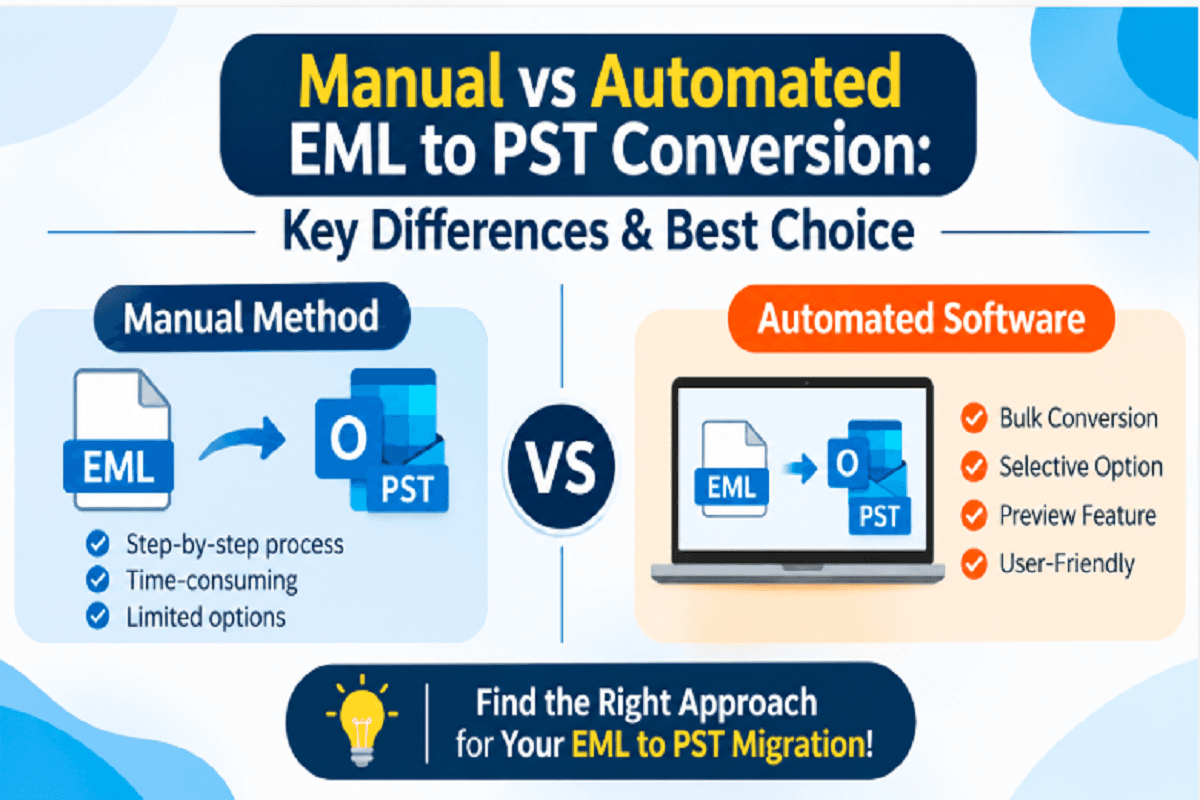
Limitations of Manual EML to PST Conversion
Manual procedures can be fine for modest migration assignments but might entail many stages and program dependencies.
Some frequent constraints are:
- Time consumption: Manually processing a huge number of EML files may take a lot of time.
- Multi-step: Users need to establish email accounts and transfer communications across programs.
- Limited selection control: Depending on the email client, users can choose specific messages or folders.
- Technical requirements: Users must have a basic knowledge of email apps and Outlook export choices.
- Compatibility differences: Depending on the operating system and version of the program, the procedure may change.
If you have a small number of mail, you could get away with manual processing. But larger collections could need a more formal conversion procedure.
Professional Software to Convert EML to PST Automatically
Another option to move email files is to use dedicated EML to PST converter software. Users can select EML files and convert them into PST format using a special interface, instead of switching between several apps to move messages.
Software solutions vary in functionality. Before you choose a tool, check whether formats, operating systems, and conversion options are supported.
How Does an Automated EML to PST Converter Work?
The procedure of conversion is the usual one:
- Install and run the EML to PST conversion tool.
- Import single EML files or choose a folder with numerous files.
- Preview the loaded email messages, if the program has this feature.
- Choose the files or folders you want to convert.
- Select PST as the export format.
- Enter a destination location.
- Initiate the conversion and examine the generated PST file.
The actual method and the set of choices available depend on the chosen application.
Key Features to Consider
Some aspects that consumers could look at while reviewing an EML to PST converter:
1. Bulk Conversion
Bulk conversion enables users to add and convert numerous EML files at one time. This might be beneficial when you have a huge number of emails or archives that include messages from many directories.
2. Selective Conversion
The selected option enables the user to pick certain EML files or directories instead of the full database. This can make migration more straightforward when just particular messages are needed.
3. Email Preview
A preview function enables users to see email content prior to conversion. Depending on the program, the preview might include message information and attachments, which makes it easier for users to find the files they wish to move.
4. Support for Multiple Languages
The ability to handle many languages may make an application simpler for users who prefer to work in a language other than English.
5. Workflow guidance
A guided method gives directions through the key conversion steps. This may assist people in analyzing the procedures without needing sophisticated technical expertise.
6. Works with EML-based email clients
Users commonly accumulate EML files from a variety of email apps. The required converter should be capable of supporting EML files created by the email clients relevant to their migration needs.
Why Choose DataVare EML to PST Converter?
DataVare EML to PST Converter is designed for users who need to convert EML email files to Outlook PST format. It offers features like bulk conversion, selective conversion of files or folders and email preview option.
The program also has a guided workflow and intuitive user interface to help users follow the conversion process more easily. Multiple language support would assist the users to navigate the program as per their language choices.
It is intended to process EML files from different EML-based email clients. Before starting a migration, users should review the product's current compatibility information for supported source apps, Windows and macOS versions, and Outlook requirements.
Steps to Perform EML to PST Conversion
The normal process is as follows:
- Open the converter.
- Add the EML files or folders you wish to convert.
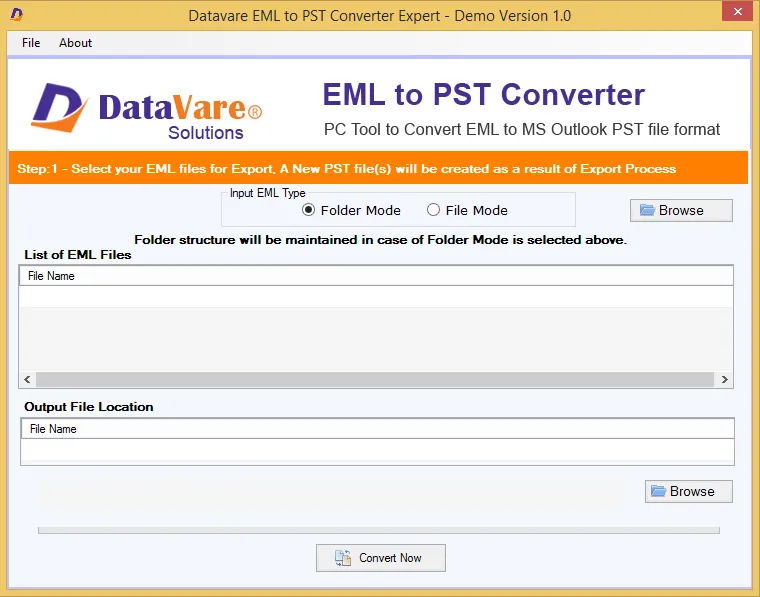
- Check the loaded messages using the preview option if needed.
- Choose the desired files or directories for conversion.
- Choose PST as the export format.
- Choose the destination route.
- Initiate the conversion and check the output file in the destination Outlook environment.
The precise choices are different depending on the installed version of the program.
Which EML to PST Conversion Method is best for you?
Migrations are not all the same. The correct decision relies on the quantity of EML files, the apps available, and the level of control that is required.
A manual approach could be okay when:
- You only have to move a few messages.
- You know how to use email clients and how to export from Outlook.
- Your email apps facilitate the needed import and transfer procedure.
When automated conversion software could be worth it:
- You have to process numerous EML files.
- You wish to choose certain files or directories.
- You like a guided process of conversion.
- You wish to preview email messages before they are converted.
- You need a specific method to deal with EML-to-PST transfer.
Before deciding on a technique, verify the source files, supported program versions, output requirements, and accessible storage. It is also advisable to back up the original EML files and check the generated PST data after conversion.
Conclusion
Manual and automatic approaches for EML to PST conversion serve distinct needs. If the email systems used allow for the transfer procedure, manual methods can be viable for smaller collections. When users need to handle files in bulk, pick certain files, and examine them, specialized conversion software could provide a more straightforward procedure.
Another choice is the DataVare EML to PST Converter, which is a guided technique for users to convert EML files to Outlook PST format. Check its supported platforms and features together with your migration requirements to see whether it is suited for your email conversion requirements.