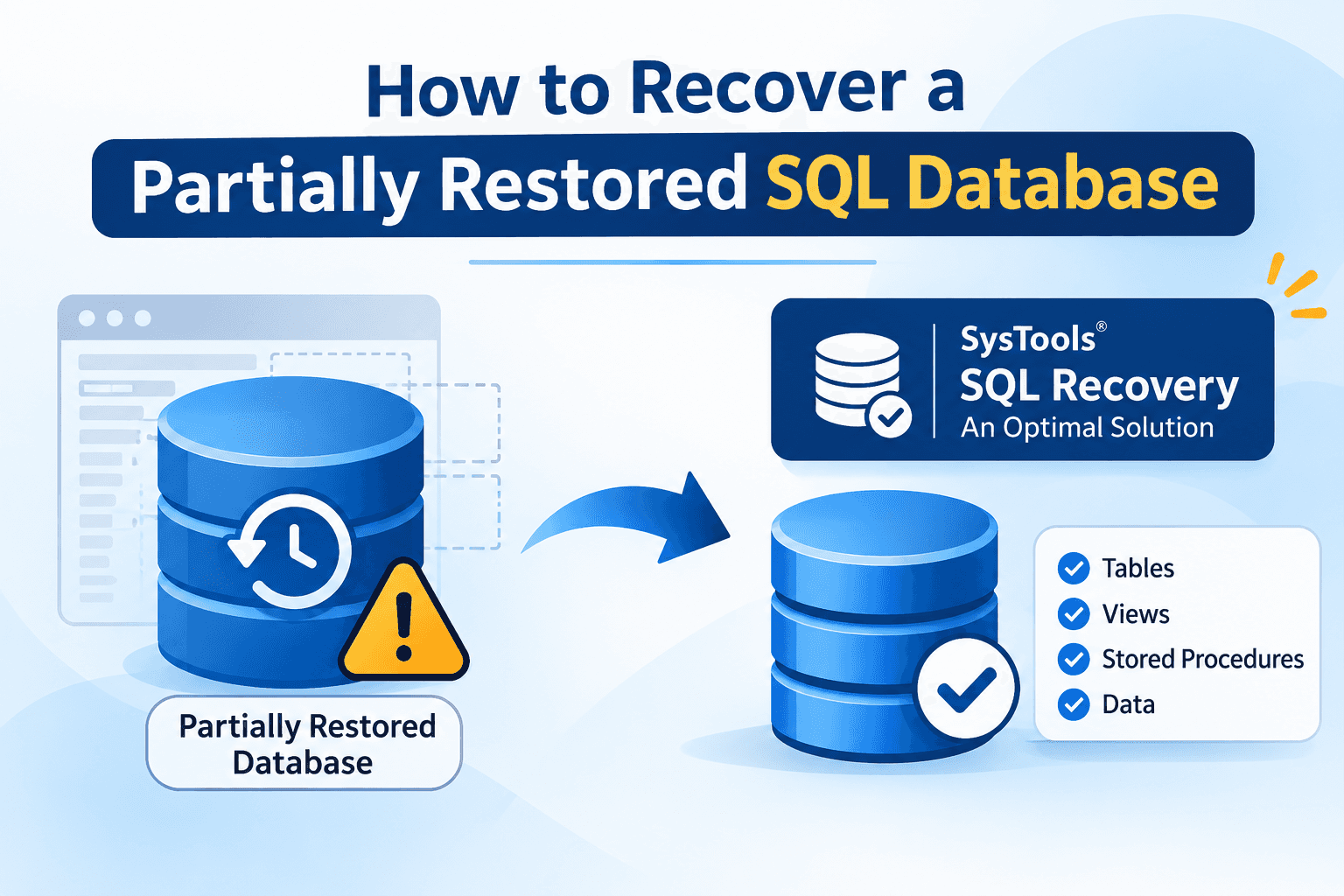
A partially restored SQL Server database may remain in the Restoring state, become inaccessible, or fail to come online after an interrupted restore operation. This usually happens due to missing backup files, an incomplete transaction log sequence, corruption in backup files, or issues with the MDF/NDF files.
To recover the database, identify whether SQL Server is waiting for additional backups or whether the restore process has failed due to corruption.
Method 1: Recover Using SysTools SQL Recovery Tool
When a database cannot be recovered through normal restore operations due to MDF/NDF corruption, using a SQL Recovery Tool is a practical alternative. It can scan damaged database files and recover accessible database objects without depending on the failed restore process.
SysTools SQL Recovery Tool helps recover partially restored or corrupted SQL databases by scanning MDF/NDF files and exporting recovered objects to SQL Server or SQL scripts.
Steps to recover:
Launch the SysTools SQL Recovery Tool and add the affected MDF file.
Select Quick Scan or Advanced Scan, depending on the corruption level.
Start the scan and preview recoverable tables, records, views, stored procedures, and other database objects.
Click Export and select SQL Server or SQL Scripts as the destination.
Complete the export and verify the recovered database.
This method is useful when the restore process repeatedly fails or the original database files cannot be recovered through native SQL Server operations.
Method 2: Complete the Restore Using WITH RECOVERY
If the database is in the Restoring state because SQL Server is waiting for more backup files, and all required backups have already been applied, complete the restore process using:
RESTORE DATABASE [DatabaseName]
WITH RECOVERY;
GO
Replace DatabaseName with the actual database name. This command rolls back uncommitted transactions and brings the database online.
Note: Do not execute WITH RECOVERY if additional differential or transaction log backups still need to be restored.
Method 3: Restore From a Valid Backup Sequence
If the previous restore sequence is incomplete, restore the database again using a valid full, differential, and transaction log backup chain.
Restore the full backup:
RESTORE DATABASE [DatabaseName]
FROM DISK = 'C:\Backup\FullBackup.bak'
WITH NORECOVERY, REPLACE;
GO
Restore the differential backup (if available):
RESTORE DATABASE [DatabaseName]
FROM DISK = 'C:\Backup\DiffBackup.bak'
WITH NORECOVERY;
GO
Restore the transaction log backups in sequence:
RESTORE LOG [DatabaseName]
FROM DISK = 'C:\Backup\LogBackup.trn'
WITH NORECOVERY;
GO
After all required backups have been restored, finalize the recovery:
RESTORE DATABASE [DatabaseName]
WITH RECOVERY;
GO
For more details, read our guide on backup and restore a SQL Server database.
Method 4: Verify Database Integrity
After recovery, verify the database for consistency errors using DBCC CHECKDB.
DBCC CHECKDB ([DatabaseName])
WITH NO_INFOMSGS;
GO
If corruption is reported, avoid running repair commands that may result in data loss. Preserve the recovered files and investigate the damaged database further.
You can also refer to our guide on repairing SQL Server databases using DBCC CHECKDB.
Conclusion
Recovering a partially restored SQL database depends on whether the restore sequence is incomplete or the database files are corrupted. If SQL Server is waiting for additional backups, completing the restore sequence with WITH RECOVERY may bring it online. However, if corruption prevents recovery, a professional solution can scan MDF/NDF files and recover accessible database objects without relying on the failed restore process. Always verify database integrity before returning it to production.
Frequently Asked Questions4 FAQs
Quick answers to common questions about this topic
A SQL Server database may remain in the Restoring state when it has been restored using WITH NORECOVERY and additional differential or transaction log backups are still pending. An interrupted restore operation can also leave the database inaccessible.
If all required backup files have been restored, execute RESTORE DATABASE [DatabaseName] WITH RECOVERY; to complete the recovery process and bring the database online.
No. Once WITH RECOVERY completes the restoration, you cannot continue applying additional transaction log backups to the same restore sequence. You must restart the restore sequence from an appropriate full backup.
No. WITH RECOVERY completes the restore process and makes the database available. It does not recover missing records or repair corrupted database files.