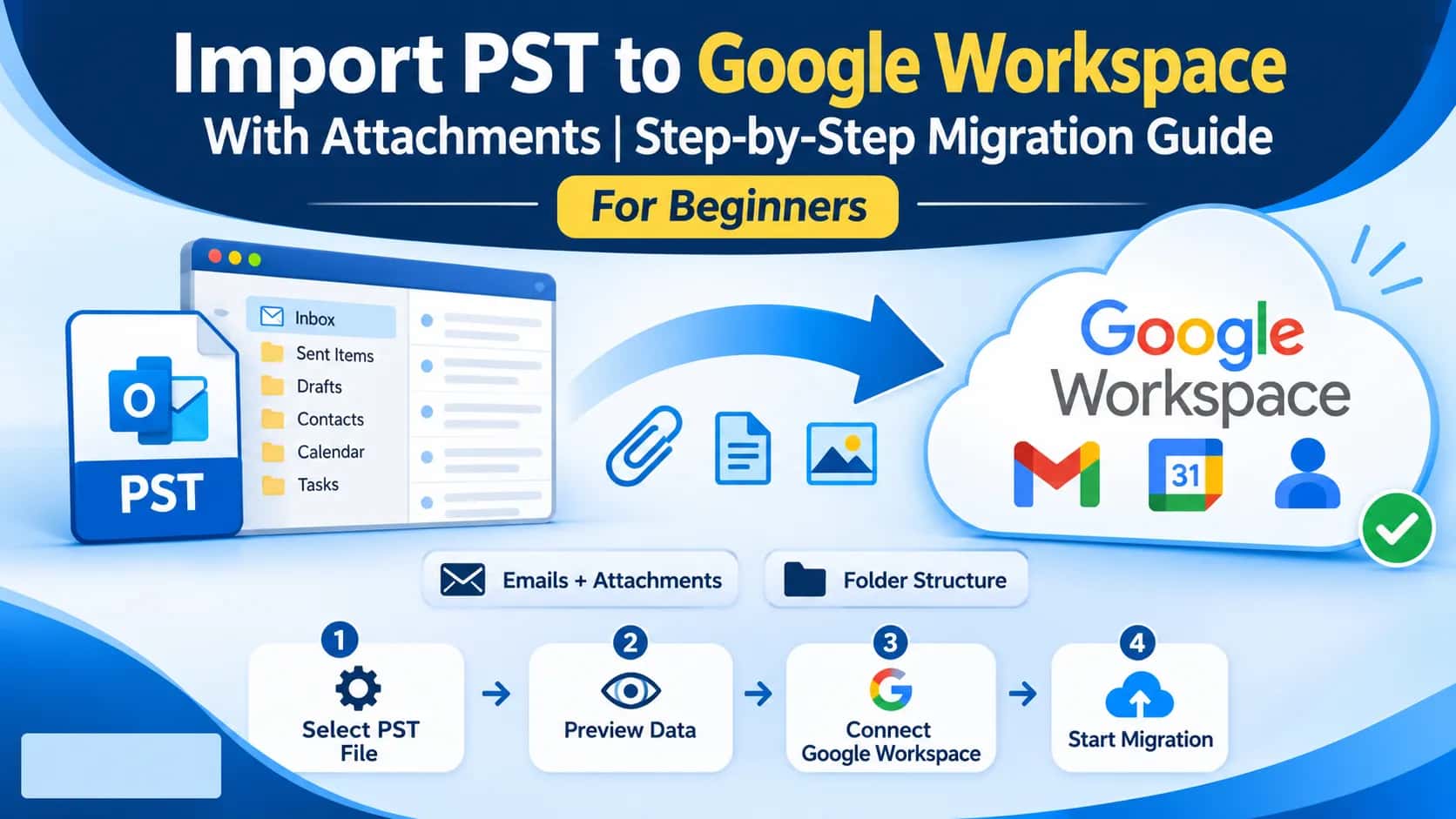
Moving from Microsoft Outlook to Google Workspace is a decision many organizations and individuals make for better collaboration, cloud accessibility, and reduced infrastructure costs. However, the actual transition raises a critical question — how do you carry your existing email data along? Outlook stores its data in PST (Personal Storage Table) files, and getting that data into Google Workspace requires a reliable, well-planned approach. This guide walks you through everything you need to know to successfully import PST to Google Workspace, covering methods, challenges, and practical considerations.
Understanding PST Files and Google Workspace
A PST file is a local data file format used by Microsoft Outlook to store emails, contacts, calendar entries, tasks, and attachments. It acts as a personal archive for all mailbox activity. Google Workspace, on the other hand, is a cloud-based productivity suite that includes Gmail, Google Calendar, Google Contacts, and collaborative apps like Drive and Meet.
Google Workspace does not offer a direct built-in PST import option, so users generally need a migration method or compatible software. This gap between the two platforms means that simply uploading a PST file won't work. Users must rely on specific methods — manual or automated — to bridge the difference.
Why Do Users Need to Migrate PST to Google Workspace?
Organizations and individuals switch to Google Workspace for several practical reasons. Cloud-based email eliminates the dependency on local storage, reduces hardware costs, and allows access from any device with an internet connection.
For businesses undergoing platform transitions, historical email data is non-negotiable. Sales records, client communications, compliance documents, and project threads stored in PST archives must move along with the migration. Leaving that data behind means losing operational continuity.
The best way to migrate PST files to Google Workspace is to use a reliable migration tool that supports bulk transfer and preserves email attachments and mailbox data. Individual users equally benefit when they want to consolidate their archived emails into a single, searchable, and accessible Gmail-based account.
Common Challenges Associated with PST Migration
Large File Size and Performance Issues
PST files tend to grow large over time, especially for professionals who have archived years of correspondence. Transferring files exceeding several gigabytes can strain system resources and lead to incomplete migration if not handled properly.
Folder Structure and Data Organization
One of the core concerns during any email migration is whether the folder hierarchy is preserved. Users rely on organized folders to find older communications. If folders collapse or items get misplaced during transfer, it creates serious workflow disruptions.
The software must maintain the original folder hierarchy and email attachments, helping keep mailbox data organized after migration.
Duplicate Emails
When migrating in stages or retrying a failed migration, duplicate emails can accumulate in the destination mailbox. This clutters the inbox and makes it harder to manage communications. Users can apply date-range filters to select relevant emails and remove duplicate messages during processing.
Manual Method Limitations
The manual method to migrate PST to Google Workspace can be difficult as it requires sound technical knowledge. Moreover, manual methods tend to cause data loss. For non-technical users or IT teams managing large-scale migrations, this risk is significant.
Different Methods to Import PST File to Google Workspace
Method 1: Google Workspace Migration for Microsoft Outlook (GWMMO)
Google provides its own migration tool called GWMMO, which is designed to help users move Outlook data into Google Workspace. It requires Outlook to be installed on the system and the PST file to be loaded into Outlook first. While it works for straightforward migrations, it has limitations when handling large volumes of data or multiple PST files simultaneously.
Method 2: IMAP-Based Manual Migration
Another approach involves converting the PST file into an IMAP-compatible format and then syncing it with a Gmail account. This process is multi-step and demands a good understanding of email protocols. It is not recommended for users managing large mailboxes or migrating on behalf of multiple accounts.
Method 3: Third-Party Automated Migration Tools
Automated tools are the most practical choice for most users. The incremental migration feature in professional tools allows you to migrate only the data that hasn't been migrated yet, avoiding duplication and reducing the overall migration time. These tools handle technical complexities in the background, allowing users to focus on verifying results rather than troubleshooting processes.
How to Import PST to G Suite / Google Workspace Step-by-Step
For users relying on an automated tool, the general process follows a structured flow:
Install and launch the migration tool on a Windows system.
Add PST files — either single files or an entire folder containing multiple PST archives.
Preview mailbox data — check emails, contacts, calendar entries, and attachments before proceeding. It allows users to load single or multiple PST files and preview mailbox items before migration. The preview helps users check emails and attachments before proceeding.
Connect your Google Workspace account — authenticate using admin credentials or individual account access.
Apply filters — select specific date ranges, senders, or subjects to narrow down what gets migrated. Aryson's PST to Google Workspace Migration Tool allows users to filter data by date, sender, and subject.
Map PST files to user accounts — especially relevant for organizations migrating data across multiple users.
Start the migration and monitor the progress until completion.
Verify the results in Google Workspace — confirm that emails, contacts, and calendar data appear correctly.
Important Considerations Before Migrating PST Files
Before starting any migration, a few preparation steps can prevent data loss and simplify the process:
Create a backup of all PST files. Before starting, create a backup of your original PST files and verify that they are accessible.
Check PST file integrity to ensure no corruption exists before the migration begins.
Verify Google Workspace account permissions — admin-level access may be required for multi-user migrations.
Test with a small batch first. Before migrating all your data, test a small batch and verify the emails, attachments, and folder organization in the destination account.
Check storage limits in Google Workspace to ensure the destination account has sufficient capacity for the incoming data.
How Aryson PST Migration Tool Can Help
For users looking for a structured and reliable solution, the Aryson PST Migration Tool offers a focused approach to this task. It is a professional solution designed to help users seamlessly migrate their Outlook PST files into Google Workspace accounts, supporting direct migration to Gmail, Contacts, Calendar, and more — without requiring intermediate conversions.
It allows migration of PST files directly to Microsoft 365, IMAP, Google Workspace, Shared Mailboxes, and Primary Mailboxes, while also syncing PST archives including contacts, calendars, and tasks to the Google Workspace environment.
Batch migration support allows importing multiple PST files to Google Workspace accounts at once, which is particularly useful for IT administrators managing enterprise-level migrations.
This tool does not require Outlook to import PST to Google Workspace, making it accessible even for users whose systems don't have Outlook installed.
Aryson PST File Converter supports Outlook 2021, 2019, 2016, 2013, and earlier versions, ensuring compatibility across all PST files.
The tool allows mapping of PST files to specific Google Workspace accounts, making it easy to ensure that the right data goes to the right users. This is a critical feature for organizations running department-level or organization-wide migrations.
Conclusion
Switching from Outlook to Google Workspace is a smart move for teams and individuals seeking better cloud accessibility and collaboration. The challenge lies in moving historical PST data without losing structure, attachments, or important communications. Whether using a manual method or an automated solution, careful preparation and the right tool make a substantial difference in the outcome. For those looking to import PST to Google Workspace efficiently and without technical complexity, an automated approach is always the safer and more reliable path. Evaluating tools based on their filtering options, folder mapping, batch support, and data integrity features will help ensure a migration that is both complete and accurate.
Frequently Asked Questions3 FAQs
Quick answers to common questions about this topic
Yes, you can migrate PST files to Google Workspace without installing Microsoft Outlook. A compatible PST migration tool can directly access PST files and transfer mailbox data to your Google Workspace account.
The best way to import large PST files is to use a reliable migration tool with batch processing and filtering options. These features help manage multiple PST files and transfer selected mailbox data efficiently.
You can migrate multiple PST files using a tool that supports batch migration and account mapping. Add the PST files, assign them to the appropriate Google Workspace accounts, and begin the migration after reviewing the selected data.