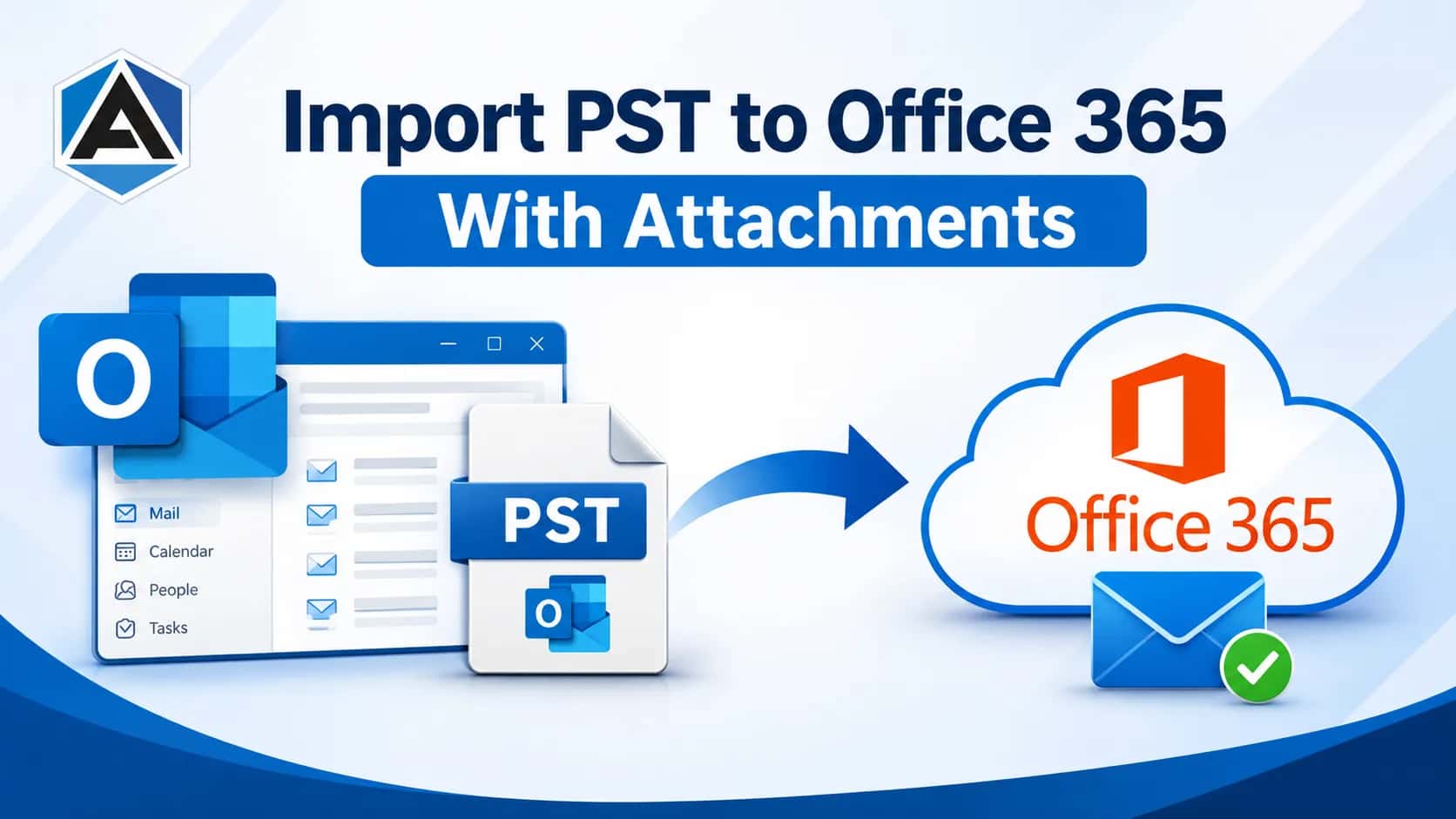
Organizations moving away from desktop-based Outlook storage often face one unavoidable task: transferring years of archived emails, contacts, and calendars into the cloud. Anyone who has tried to import PST to Office 365 manually knows that the process is rarely as simple as dragging a file into a mailbox. Between folder structures, file size limits, and the risk of data loss, this migration requires a clear understanding of the available methods and potential challenges.
Understanding PST Migration to Office 365
A PST (Personal Storage Table) file is the format Microsoft Outlook uses to store emails, contacts, calendar entries, and other mailbox items locally on a computer. When a business or individual shifts to Microsoft 365, locally stored PST files need to be moved into cloud-hosted mailboxes. This makes the data accessible across devices without depending on a single computer. Importing a PST file to Office 365 essentially means transferring an offline archive into an Exchange Online mailbox. Once imported, the data becomes accessible through Outlook and Outlook on the web. However, PST files often contain years of accumulated data, complex folder structures, and sometimes corrupted items, making migration more challenging.
Why Do Users Need to Migrate PST to Office 365?
Businesses adopting Microsoft 365 generally want to centralize communication, reduce dependency on local storage, and improve collaboration. Locally stored PST files do not provide real-time synchronization, convenient multi-device access, or centralized data management. Several situations make this migration necessary:
Employees need access to previously archived emails from cloud-based mailboxes.
IT departments are standardizing their email infrastructure on Microsoft 365.
Companies are merging mailboxes following acquisitions or organizational restructuring.
Users are moving from on-premises Exchange servers to cloud-based environments.
Organizations want to make historical email communication accessible to remote employees.
In each situation, the primary objective is to transfer historical mailbox data without disrupting regular email communication.
Common Challenges Associated with PST to Office 365 Migration
1. File Size and Bulk Data Handling
PST files can become extremely large over time. Transferring archives containing several gigabytes of data can slow down or interrupt manual uploads. Organizations managing hundreds of employee archives face additional difficulties when processing files individually.
2. Folder Structure and Data Integrity Risks
Maintaining the original folder hierarchy is important during migration. Emails may become difficult to locate if folders are misplaced or their structure is not preserved correctly. Nested folders, Sent Items, Drafts, and other mailbox components require careful handling.
3. Duplicate Data
Repeated uploads or importing the same archives multiple times can create duplicate emails in destination mailboxes. These duplicates increase mailbox storage usage and make email management more difficult.
4. Mapping Multiple Mailboxes
Organizations importing PST files into Microsoft 365 for multiple employees must assign each archive to the correct destination mailbox. Managing these assignments manually can become complicated, especially when handling dozens or hundreds of users.
Different Methods to Migrate PST to Office 365
There are several ways to migrate PST files to Office 365. The appropriate method depends on the migration volume, technical requirements, and available resources.
Method 1: Manual Import Using Outlook
Users can manually open a PST file in Microsoft Outlook and move its contents into an Office 365-connected mailbox. This approach is suitable for small migrations involving individual users. However, transferring multiple large PST files manually can require considerable time and effort.
Method 2: Microsoft's Network Upload or PST Import Service
Microsoft provides a native PST import service that allows administrators to upload PST files into Microsoft 365 mailboxes. Organizations can use network upload for transferring files or physical drives for certain large-scale migration scenarios. This method is useful for administrators managing organizational migrations. However, it requires appropriate permissions, configuration, and familiarity with Microsoft's import process.
Method 3: Third-Party Migration Software
Dedicated migration software provides an alternative for users who need additional control over the migration process. Such tools can offer bulk file processing, mailbox mapping, selective migration, and duplicate handling. This approach can reduce repetitive manual work, particularly when organizations need to migrate multiple employee archives.
How to Import PST File to Office 365 Step by Step
A professional software-based migration generally follows these steps:
Step 1: Add PST Files
Select the PST files you want to migrate. Depending on the software, you may be able to add individual files or multiple PST files simultaneously.
Step 2: Preview Mailbox Contents
Review the contents of the selected PST files before starting the migration. This helps identify the mailbox data that needs to be transferred.
Step 3: Map PST Files to Office 365 Mailboxes
Assign each PST file to its corresponding Office 365 account. Depending on the software, you may use manual, bulk, or CSV-based mapping options.
Step 4: Apply Filters if Required
Use available filtering options to select specific folders or date ranges. This is helpful when you only need to migrate particular mailbox items.
Step 5: Start the Migration
Initiate the migration process and monitor its progress until the transfer is complete.
Step 6: Verify the Migration Results
Check the destination Office 365 mailbox to confirm that the required emails, attachments, and folder structures have been transferred correctly.
Important Considerations Before Performing the Migration
Before starting a PST migration, consider the following precautions to avoid unnecessary problems:
Back Up Original PST Files: Keep a separate copy of the original files in case you need to repeat the migration.
Check PST File Health: Use Outlook's built-in Inbox Repair Tool if a PST file shows signs of corruption.
Verify Microsoft 365 Licensing: Ensure that the destination accounts have the appropriate licenses and mailbox access.
Check Available Storage: Confirm that destination mailboxes have sufficient storage for the imported data.
Plan Network Usage: Consider bandwidth requirements when migrating large archives or multiple mailboxes.
Manage Duplicate Data: Decide how duplicate emails should be handled before starting the migration.
Test the Process: Perform a small test migration before transferring large amounts of organizational data.
How Aryson PST to Office 365 Migration Tool Can Help
Organizations that find manual or native migration methods time-consuming may consider dedicated migration software. The Aryson PST to Office 365 Migration Tool provides a solution for transferring Outlook PST files directly to Microsoft 365 mailboxes. The software supports several capabilities designed to simplify the migration process.
Direct PST to Office 365 Migration
The tool allows users to transfer Outlook PST data directly to Microsoft 365 without requiring an intermediate file format. This helps simplify the migration workflow.
Multiple PST File Migration
Organizations managing multiple employee archives can migrate several PST files simultaneously. This reduces the effort involved in processing each archive individually.
Multiple Mailbox Mapping Options
The software provides manual, bulk, and CSV-based mapping options. These features help administrators assign PST files to the appropriate Microsoft 365 accounts. This is particularly useful for IT teams managing employee onboarding, offboarding, and large-scale mailbox consolidation.
Duplicate Email Handling
The tool can compare supported email fields, including To, From, Subject, Bcc, and Body, to help identify duplicate email data during migration. This feature can help reduce unnecessary duplicate items in destination mailboxes.
OST File Migration Support
In addition to PST files, the software also supports importing OST files into Office 365. This provides another migration option for users who need to transfer locally cached Outlook mailbox data. Organizations can evaluate these features based on their migration requirements, mailbox volume, and existing email infrastructure.
Conclusion
Migrating mailbox data from local PST archives into Microsoft 365 requires careful planning. Organizations can choose between manual Outlook imports, Microsoft's native PST import service, and dedicated third-party migration software. The decision to import PST to Office 365 should depend on file size, the number of users, folder structure requirements, and data accuracy considerations. The Aryson PST to Office 365 Migration provides you best option for the both beginners and IT Admins with its easy User Friendly Interface. For small migrations, manual methods may be sufficient. However, organizations handling multiple archives can benefit from solutions offering bulk processing, mailbox mapping, and duplicate email handling. Regardless of the chosen method, backing up original PST files, checking mailbox licenses, and testing the migration process are essential steps. Proper preparation helps ensure a more organized and reliable transition to Microsoft 365.
Frequently Asked Questions5 FAQs
Quick answers to common questions about this topic
Yes, software-based migration workflows can provide a preview option. This allows users to inspect PST mailbox contents before starting the migration.
The Tool provides solution with the duplicate identification capabilities. Comparing email fields such as To, From, Subject, Bcc, and Body helps identify duplicate messages during migration.
Yes, Aryson migration tool support both PST and OST file migration. This allows users to transfer locally stored or cached Outlook mailbox data into Microsoft 365 accounts.
IT administrators can use bulk or CSV-based mailbox mapping to assign PST files to multiple destination accounts. This approach helps organize migrations involving several employees or departments.
Yes, dedicated migration solutions support direct PST-to-Office 365 migration. This eliminates the need for an intermediate file conversion step and simplifies the transfer process.