Google Workspace environments often contain thousands of emails, shared documents, calendar records, and collaboration messages distributed across multiple user accounts. Protecting this information requires more than connecting an account and starting an export. As backup operations grow, administrators must also consider API quotas, request throttling, concurrent processing, network interruptions, and workload prioritization.
A backup process that works smoothly for a small organization may become inefficient when applied to hundreds of accounts. Requests can take longer to complete, temporary API restrictions may interrupt processing, and excessive parallel activity can make it difficult to identify incomplete operations. These challenges make performance planning an important part of Google Workspace data protection.
This article examines the technical factors that influence large-scale backup performance and explains how administrators can organize workloads for more predictable processing.
1. Why Google Workspace Backup Performance Requires Planning
Google Workspace data is distributed across services that have different structures and processing requirements. Gmail stores messages and attachments, Drive manages files and shared content, and Google Chat contains conversations, Spaces, and associated collaboration data.
These services do not necessarily process information at the same speed. A mailbox containing thousands of small messages may behave differently from a Drive account containing large files or complex shared folders.
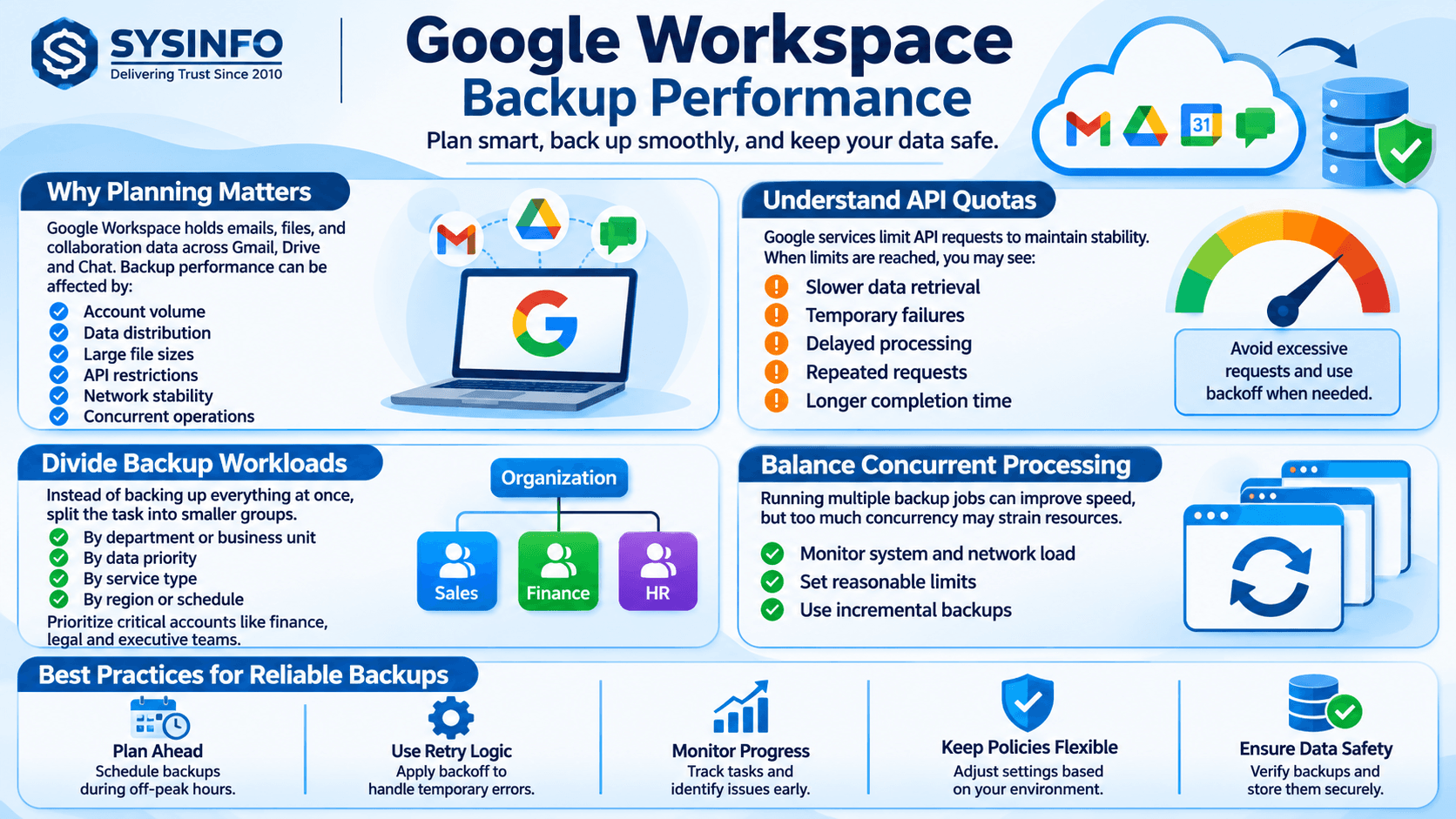
Several factors influence backup performance:
Account volume: More user accounts create additional authentication and processing requirements.
Data distribution: Gmail, Drive, and Chat contain different content types and structures.
File size: Large attachments and documents increase transfer and storage requirements.
API restrictions: Google services apply usage limits that can affect request frequency.
Network stability: Unstable connections may interrupt transfers or require retries.
Concurrent operations: Running several backup jobs simultaneously increases system and network demand.
Before beginning a large operation, administrators should understand these variables and establish a realistic processing plan.
2. Understanding API Quotas and Request Throttling
Application Programming Interfaces (APIs) allow backup applications to communicate with cloud services and retrieve authorized information. Google Workspace backup operations rely on service APIs to access mailbox, Drive, and collaboration data.
However, API access is subject to usage limits. These limits help maintain service stability and prevent excessive request activity.
What Happens When API Limits Are Reached?
When an application sends requests too frequently or exceeds an applicable quota, the service may temporarily restrict additional requests. This behavior is commonly described as throttling.
A backup operation affected by throttling may experience:
Slower data retrieval.
Temporary request failures.
Delayed processing of individual accounts.
Repeated requests after temporary errors.
Longer completion times for large jobs.
Administrators should not interpret every temporary failure as permanent data loss. A restricted request may succeed after the application waits and retries according to the service's response.
Why Repeated Requests Can Make the Problem Worse
An inefficient retry process can increase the number of requests sent to a service. For example, immediately repeating every failed request may create unnecessary traffic during an already restricted period.
A more controlled approach uses appropriate waiting periods, retry limits, and progress tracking. Where supported, exponential backoff can gradually increase the delay between repeated attempts.
This helps reduce unnecessary request pressure while allowing temporary restrictions to clear.
3. Divide Backup Operations Into Manageable Workloads
Processing an entire organization as one large operation may make performance issues difficult to isolate. A better approach is to divide the backup scope into logical workloads.
Administrators can group accounts according to:
Department or business unit.
Account size.
Service type.
Data priority.
Geographic or organizational requirements.
Backup frequency.
For example, an organization with 300 accounts could divide them into smaller processing groups rather than initiating every account simultaneously.
This approach offers several advantages. If one group encounters authentication failures, the remaining groups can continue independently. Administrators can also compare processing times and identify accounts that require additional attention.
Prioritize Critical Accounts
Not every account requires the same backup priority. Mailboxes belonging to finance, legal, customer support, and executive teams may contain records that require earlier protection.
A priority-based approach allows administrators to process critical information first while scheduling less urgent accounts separately.
The objective is not simply to maximize the number of simultaneous operations. It is to complete important backup tasks reliably without placing unnecessary pressure on the environment.
4. Balance Concurrent Processing With Available Resources
Concurrency refers to executing multiple operations during the same period. It can improve throughput, but excessive concurrency may create resource bottlenecks.
A backup workstation must manage network connections, temporary files, memory usage, file conversion, and output storage. When too many operations compete for these resources, overall performance may decrease.
Factors to Consider Before Increasing Concurrency
- CPU utilization: Processing large files and converting documents can increase processor usage.
- Available memory: Multiple active tasks may consume significant RAM, particularly when handling large mailboxes.
- Network bandwidth: Several simultaneous downloads can compete for the same connection.
- Disk performance: Writing multiple output files at once may increase storage activity.
- API request volume: Parallel requests can increase the likelihood of reaching service limits.
A practical method is to begin with a manageable number of concurrent tasks, observe system behavior, and adjust gradually.
Administrators should measure actual completion times instead of assuming that more simultaneous jobs always produce faster results.
5. Treat Gmail, Drive, and Chat as Different Processing Workloads
A unified backup plan does not mean every Google Workspace service should be processed identically.
Each service has different data characteristics and operational requirements.
Gmail Processing
Mailbox backups may involve messages, attachments, labels, folders, and metadata. Large mailboxes can require substantial retrieval and export activity.
Useful performance considerations include:
Selecting relevant mailboxes before processing.
Applying date-range filters where appropriate.
Excluding unnecessary categories when permitted.
Reviewing attachment handling settings.
Checking whether duplicate detection is required.
Exporting large datasets in manageable batches.
Google Drive Processing
Drive backup operations may involve My Drive, Shared Drives, shared files, folders, and different document types.
File size and document conversion can influence processing time. Administrators should identify large files and important shared locations before beginning the operation.
Google Docs, Sheets, and Slides may also require conversion when the selected destination uses Microsoft Office formats.
Google Chat Processing
Chat data contains conversations, messages, Spaces, and associated files. Its structure requires attention to participants, conversation relationships, and message organization.
Administrators should verify the selected accounts and relevant Spaces before processing. Where migration is involved, destination mapping should be reviewed separately from the actual data transfer.
6. Use Incremental Processing to Reduce Repeated Work
Repeatedly processing an entire dataset can increase backup time and resource consumption. Incremental processing helps reduce unnecessary work by identifying information that has already been handled and focusing on new or modified data.
This is particularly useful when an initial backup contains a large amount of information.
A practical workflow includes:
Perform the initial backup or migration.
Record the completed processing state.
Identify new or modified information during subsequent operations.
Process eligible changes.
Check the resulting reports for incomplete items.
Delta synchronization and resume functionality can help administrators continue interrupted operations without repeating all previously completed work, depending on the selected workflow and application settings.
For example, the backup page describes checkpoint-based resumption and options to skip previously migrated items. These capabilities can reduce repeated processing during interrupted migration jobs.
7. Apply Filters Before Starting Large Backup Jobs
Filtering reduces the amount of information an application needs to retrieve, process, and export.
However, filters should be selected according to business requirements rather than applied only to improve speed.
Useful filtering options may include:
Start and end dates.
Specific Gmail labels.
Sender and recipient addresses.
Subject-based conditions.
Selected Drive locations.
Specific user accounts.
Exclusion of unnecessary categories.
For instance, an organization preparing a historical mailbox export may only require messages from a defined period. Selecting that period before processing can reduce the workload considerably.
The administrator should document the chosen filters so that the backup scope remains understandable and repeatable.
8. Prepare for Network Interruptions and Temporary Failures
Large backup operations may run for extended periods. During this time, network instability, temporary service restrictions, or workstation interruptions can affect processing.
A reliable workflow should distinguish between completed, skipped, failed, and pending items.
When an operation stops unexpectedly, administrators should:
Review the last successful processing point.
Check whether authentication sessions remain valid.
Confirm network connectivity.
Examine error messages and failed-item reports.
Reauthenticate when required.
Resume the operation using the available recovery options.
Verify the final output rather than relying only on a completion notification.
A restart should not automatically be treated as proof that every item has been processed correctly. The final reports and destination data should be checked for completeness.
9. Monitor Performance With Detailed Job Reports
Performance monitoring helps administrators understand where time and resources are being consumed.
A useful backup report should provide visibility into completed, skipped, and failed items. Where available, administrators should also review account-level progress and error details.
Comparing these indicators across different backup batches can help identify recurring bottlenecks.
For example, if Drive exports consistently take longer than mailbox exports, administrators can investigate file sizes, document conversion, and network throughput instead of changing the entire backup configuration.
10. Select a Backup Application With Enterprise Processing Controls
For organizations handling multiple Workspace accounts, the selected application should support more than basic email export.
Important capabilities include batch account selection, supported authentication methods, selective filtering, duplicate handling, incremental processing, and detailed reporting.
The SysInfo Google Workspace Backup Tool provides several of these controls. Its listed features include CSV-based account mapping, Workspace Admin Domain-Wide Delegation authentication, OAuth 2.0, date filtering, duplicate handling, and checkpoint-based resume options. It also supports local exports and migration to other Workspace accounts, Microsoft 365, and Exchange Server.
The product page describes support for Gmail, Drive, and Chat processing, along with export options such as PST, PDF, MBOX, and CSV for mailbox data. Administrators should review the official prerequisites and service-specific limitations before selecting a production workflow.
11. A Practical Performance Checklist for Administrators
Before launching a large Google Workspace backup, review the following points:
Identify the total number of accounts and estimated data volume.
Separate accounts into logical processing groups.
Prioritize business-critical mailboxes and shared resources.
Confirm the required API permissions and authentication method.
Check available CPU, RAM, disk space, and network capacity.
Avoid starting more concurrent jobs than the environment can handle.
Apply relevant date, folder, and account filters.
Review attachment and document conversion settings.
Enable appropriate duplicate-handling options.
Prepare a recovery procedure for interrupted operations.
Monitor completed, skipped, and failed records.
Validate exported data and preserve the final reports.
This checklist creates a repeatable process and helps reduce avoidable delays during large backup operations.
Conclusion
Google Workspace backup performance depends on several connected factors, including API request limits, concurrency, data volume, network capacity, and workload organization. Increasing processing activity without considering these factors can lead to throttling, repeated requests, resource contention, and longer completion times.
Administrators can improve operational consistency by dividing accounts into manageable batches, prioritizing important data, applying appropriate filters, monitoring resource usage, and using incremental processing where supported. Detailed reports and post-backup verification are equally important because a fast operation is not useful if its output is incomplete.
A structured approach helps organizations protect their Workspace information while keeping large-scale backup and migration operations easier to monitor, troubleshoot, and manage.