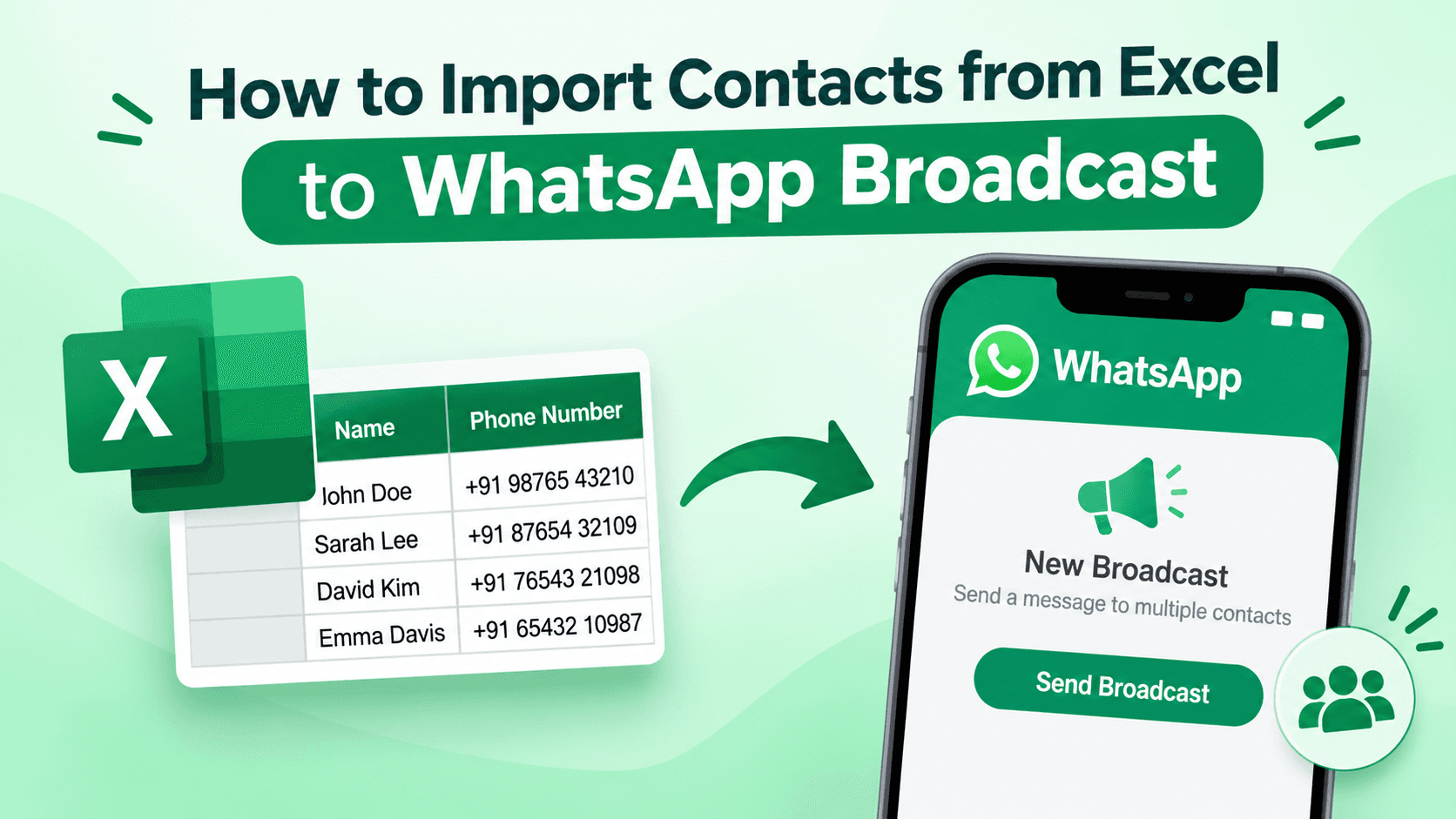
Quick Answer: WhatsApp does not provide a direct option to import contacts from Excel files (XLS or XLSX) into a broadcast list. You first need to save the Excel contacts to your phone's address book. The easiest way is to convert the Excel file into a VCF (vCard) file, import it into your phone, and then create a WhatsApp broadcast list using the saved contacts. You can also use Google Contacts to import and sync contacts before creating a broadcast list.
WhatsApp Broadcast is a useful feature for sending the same message to multiple people without creating a group. Businesses, marketers, and individuals use it to share announcements, promotional updates, invitations, reminders, and other important information with several contacts at once.
However, managing a large contact list in Excel can make this process challenging. You may already have hundreds or thousands of customer names and phone numbers stored in an XLS or XLSX spreadsheet, but WhatsApp does not allow you to upload that spreadsheet directly to create a broadcast list.
So, how can you import contacts from Excel to WhatsApp Broadcast without adding each number manually?
There are several ways to create WhatsApp broadcast list from Excel spreadsheet. In this guide, we will explain the available methods, their steps, limitations, and a practical solution for handling bulk Excel contacts.
Why Import Excel Contacts to WhatsApp Broadcast?
Excel is commonly used to maintain customer databases, employee directories, business leads, and marketing contact lists. Moving these contacts to WhatsApp Broadcast can make communication easier.
Here are some common reasons to import Excel contacts into WhatsApp:
Bulk Messaging: Send announcements, offers, and updates to multiple contacts simultaneously.
Customer Communication: Keep customers informed about new products, services, and business activities.
Marketing Campaigns: Reach saved customers with promotional messages and campaign updates.
Event Invitations: Share meeting details, event invitations, and reminders with multiple recipients.
Contact Management: Use an existing Excel spreadsheet instead of manually saving every phone number.
Things to Know Before Importing Excel Contacts to WhatsApp Broadcast
Before starting the process, understand a few important WhatsApp requirements:
WhatsApp does not directly support importing XLS or XLSX files into broadcast lists.
Contacts must be saved in your phone's address book before you can select them for a broadcast list.
Recipients generally need to have your phone number saved in their address books to receive broadcast messages.
A standard WhatsApp broadcast list supports up to 256 recipients.
WhatsApp Business also provides broadcast-related business messaging features, which may have different eligibility and usage requirements.
Keep phone numbers in the correct international format, including the country code. For example, Indian numbers should include +91.
These requirements help avoid missing contacts and unsuccessful message delivery.
Method 1: Import Excel Contacts to WhatsApp Using Google Contacts
Google Contacts provides a convenient way to transfer contacts from an Excel spreadsheet to your phone. You can first save the Excel file as CSV, import it into Google Contacts, and then sync the contacts with your Android device.
Follow these steps:
Step 1. Open your Excel spreadsheet containing names and phone numbers.
Step 2. Arrange the data into separate columns, such as First Name, Last Name, and Phone Number.
Step 3. Click File > Save As and save the spreadsheet in CSV format.
Step 4. Open Google Contacts in your browser and sign in with your Google account.
Step 5. Click the Import option from the left panel.
Step 6. Select the CSV file containing your Excel contacts and click Import.
Step 7. Once the contacts are imported, enable contact synchronization on your Android phone using the same Google account.
Step 8. Open your phone's Contacts application and verify that the imported numbers appear correctly.
Step 9. Open WhatsApp and refresh your contact list if necessary. The imported contacts should now be available for selection.
Limitations:
This method requires an active Google account and internet connectivity. Incorrect CSV formatting, missing country codes, and duplicate phone numbers can cause contact import issues. You may also need to manually organize the imported contacts before creating a broadcast list.
Method 2: Import Excel Contacts to WhatsApp Using a VCF File
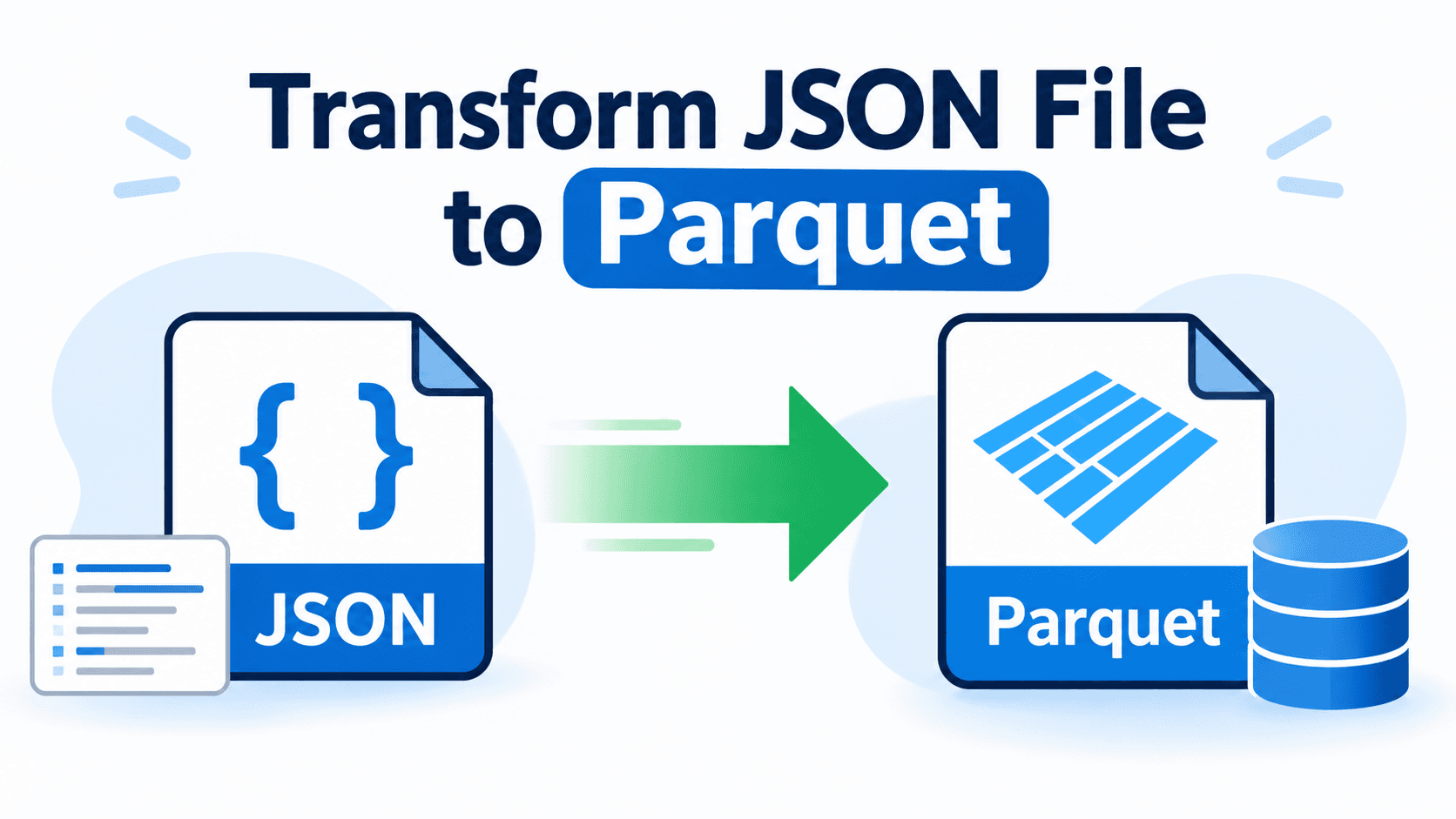
Another practical way to import Excel contacts into WhatsApp is by converting the spreadsheet into a VCF (vCard) file.
A VCF file stores contact information, including names, phone numbers, email addresses, and other details. Once created, you can import this file into your phone's address book and access the contacts through WhatsApp.
Step 1. Open the Excel file containing your contact information.
Step 2. Check that each contact has a proper name and phone number, including the country code.
Step 3. Convert the Excel spreadsheet into a VCF file using a compatible Excel-to-vCard converter.
Step 4. Transfer the resulting VCF file to your Android phone or iPhone.
Step 5. On Android, open the Contacts application and navigate to Organize > Import from file (the menu may differ by device).
Step 6. Select the VCF file and choose the Google account or phone storage where you want to save the contacts.
Step 7. On iPhone, you can import the VCF file through iCloud Contacts or open the VCF attachment on your device and follow the import prompts.
Step 8. Open WhatsApp and check whether the imported contacts are visible.
Step 9. Select the required contacts while creating a new broadcast list.
Limitations:
Excel does not provide a direct export option for VCF files. You need a separate conversion process before importing the contacts. For large spreadsheets, manual conversion can become time-consuming, especially when you need to preserve multiple contact fields and manage thousands of records.
Expert Tip: Convert Excel Contacts to VCF in Bulk
If you have a large Excel contact database, converting every contact individually is not a practical option. A dedicated conversion utility can simplify the process. The SysTools Excel to vCard Converter Tool is an option for converting Excel spreadsheets into VCF files in bulk. Instead of manually creating individual contact files, you can add your Excel files, map contact fields, preview the information, and export the contacts into the required vCard format.
Some useful features include:
Bulk Conversion: Convert multiple Excel contact files into VCF format in one process.
Multiple Excel Formats: Supports XLS, XLSX, XLSM, XLSB, XLT, and other supported spreadsheet formats.
Contact Field Mapping: Map Excel columns to the appropriate vCard fields.
Preview Contacts: Check contact information before starting the conversion.
Multiple vCard Versions: Choose vCard 2.1, 3.0, or 4.0 according to your requirements.
Flexible Export: Save contacts as individual VCF files or a single combined VCF file.
This approach is useful when you need to prepare a large contact list for importing into an Android or iPhone address book.
How to Create a WhatsApp Broadcast List After Importing Excel Contacts?
After importing the contacts into your phone, the next step is to create a broadcast list. WhatsApp provides slightly different navigation options on Android and iPhone.
On Android
Open WhatsApp on your Android phone.
Go to the Chats tab.
Tap the three-dot menu in the upper-right corner.
Select New broadcast or Broadcast lists, depending on your app version.
Search for and select the contacts you want to include.
Tap the checkmark to create the list.
Enter your message and send it to the selected recipients.
On iPhone
Open WhatsApp on your iPhone.
Go to Settings or tap your profile picture.
Select Broadcast Messages.
Tap New List.
Select the contacts you want to add.
Tap Create.
Open the broadcast list, type your message, and send it.
Important: WhatsApp broadcast lists are not supported on WhatsApp Web, Windows, or Mac. You must create and manage standard broadcast lists through the mobile app.
Best Practices Before Sending WhatsApp Broadcast Messages
Follow these practices to manage your imported Excel contacts efficiently:
Verify Phone Numbers: Check every contact number before importing it into your phone.
Use Country Codes: Maintain international phone number formats to avoid incorrect contact recognition.
Remove Duplicates: Clean the Excel spreadsheet before converting it into VCF.
Organize Contacts: Create separate lists for customers, employees, clients, or business partners.
Check Recipient Consent: Send promotional and business messages only to people who have agreed to receive them.
Test Before Sending: Send a test message to a few contacts to verify that everything works correctly.
Keep Contacts Updated: Regularly review your spreadsheet to remove outdated or invalid numbers.
Conclusion
Importing contacts from Excel to WhatsApp Broadcast requires an additional contact-import step because WhatsApp does not directly support Excel spreadsheets for standard broadcast lists. You can use Google Contacts or convert Excel files into VCF format to transfer contacts into your phone's address book. For large contact databases, the SysTools Excel to vCard Converter simplifies bulk conversion and helps maintain contact information. Once the contacts are imported, you can create broadcast lists and share messages with your intended recipients.